¶ Use the Defend-O-Tron for DNS
DNS is how computers turn a name, such as defend-o-tron.protected.lan, into an address. The Defend-O-Tron answers for its own names under protected.lan:
defend-o-tron.protected.lan: the web interface.adguard.protected.lan: the DNS filter’s own settings.crowdsec.protected.lan: where connected systems read the block list.
Your computers can only use these names if their lookups for protected.lan reach the Defend-O-Tron.
Without A or B below, none of the
*.protected.lannames work. Your computers cannot finddefend-o-tron.protected.lan,adguard.protected.lanorcrowdsec.protected.lan. You can still reach the web interface athttps://<management ip>/.
¶ Choose how
| A. Send only protected.lan to the Defend-O-Tron | B. Use the Defend-O-Tron for all DNS | |
|---|---|---|
| What it does | Your router or DNS server asks the Defend-O-Tron about protected.lan names, and everything else as before | Every lookup on your network goes through the Defend-O-Tron |
| Ad, tracker, and malware filtering | No | Yes, with the built-in DNS filter |
| If the Defend-O-Tron is switched off | Only protected.lan names stop working | All name lookups stop, so web browsing stops too |
| Best for | Offices with their own DNS server, or a router that can forward one domain | Small networks that want filtering |
If you are not sure, choose A. It changes the least, and the rest of the Defend-O-Tron’s protection works the same either way.
¶ Before you start
-
Find the Defend-O-Tron’s management address. In the web interface, under Device, click Management port. The Address box shows it (in the example,
192.168.1.20). The steps below call it<management ip>.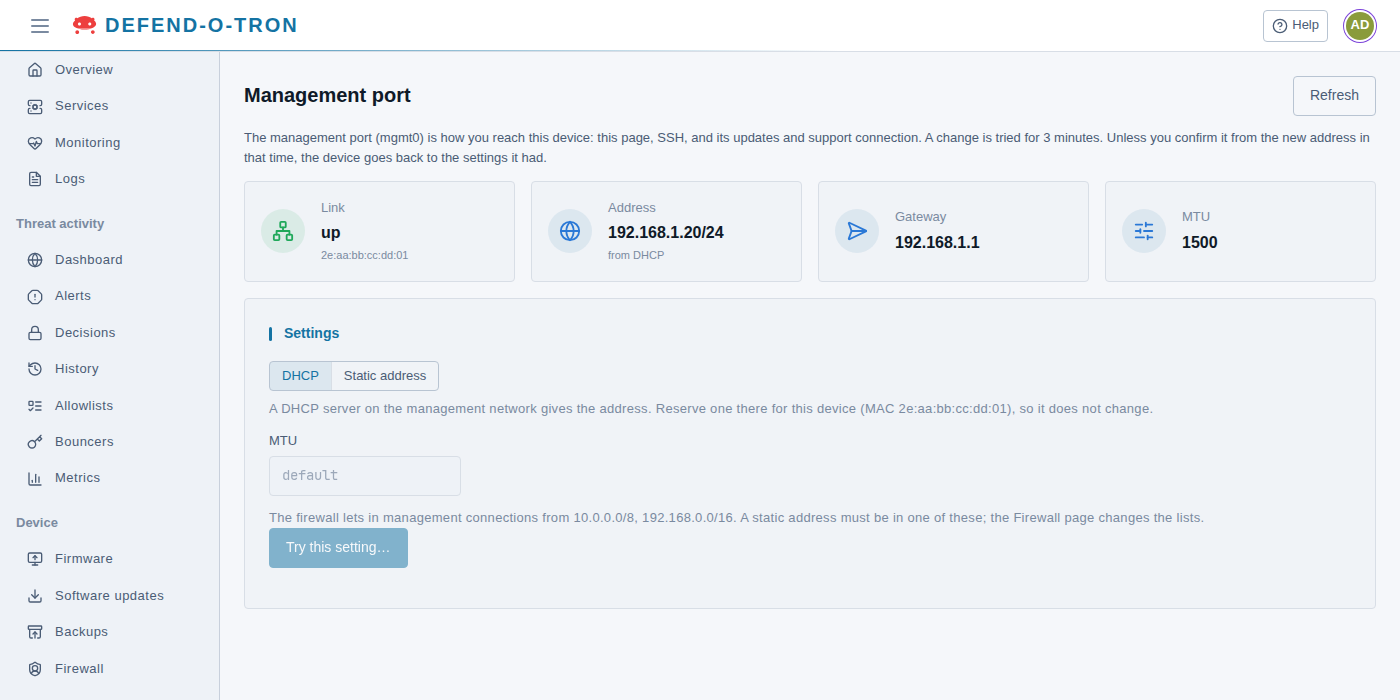
-
Make sure that address never changes. Every step below points your network at this address. If the Defend-O-Tron gets a different one, DNS stops working for everything set up here. Do one of these:
- Reserve the address on your DHCP server (often called a static lease, static mapping or DHCP reservation). Use the MAC address shown on the Management port page, so the server always gives the Defend-O-Tron the same address.
- Or give the Defend-O-Tron a static address on the Management port page: choose Static address, enter the address, and click Try this setting…. The device tries it for 3 minutes, and keeps it only if you confirm it from the new address. Pick an address outside your DHCP server’s range, so it is never handed to another device.
Do this before you change any DNS settings. An address that changes later breaks name lookups for every device that uses the Defend-O-Tron for DNS.
-
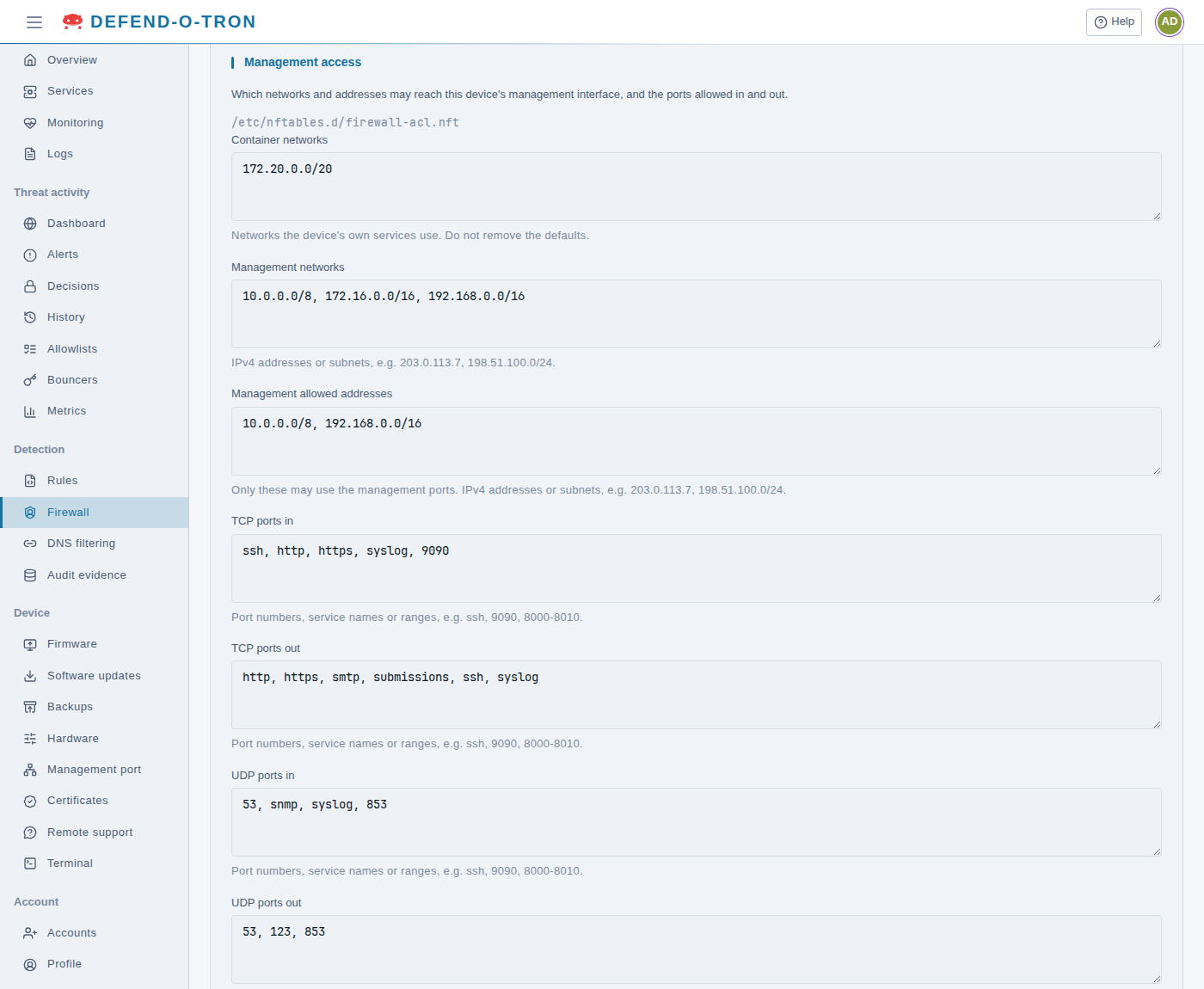
Allow your DNS server or router through the Defend-O-Tron’s firewall. Under Detection, click Firewall. On the Management access card, check that the address of the system that will ask the Defend-O-Tron (your router or DNS server for A, your computers for B) is covered by Management allowed addresses and Management networks. Add it if it isn’t, then click Save and apply.
¶ A. Send only protected.lan to the Defend-O-Tron
This is called conditional forwarding: “for names ending in protected.lan, ask this server”. Pick the system that answers DNS on your network.
For networks with a Windows domain controller or Windows DNS server.
-
Open DNS Manager and expand your server.
-
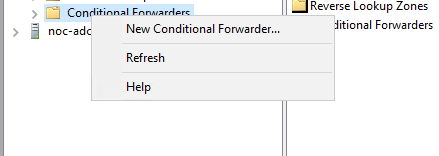
Right-click Conditional Forwarders and choose New Conditional Forwarder…
-
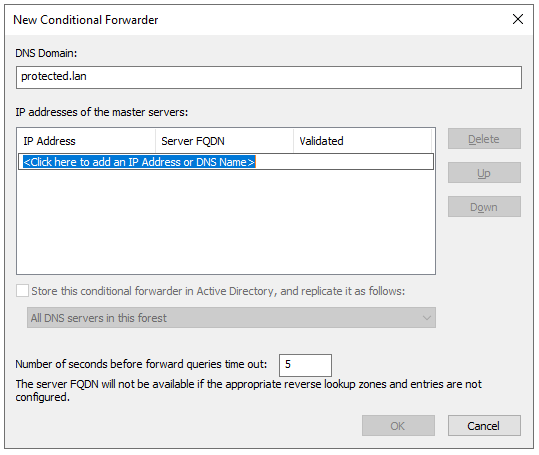
In DNS Domain, type
protected.lan. -
In the list of server IP addresses below it, click and type the Defend-O-Tron’s management address, then press Enter. A red mark saying the server is not authoritative is normal here and can be ignored.
-
To share the setting with your other domain controllers, tick Store this conditional forwarder in Active Directory and choose who to share it with.
-
Click OK.
The same in PowerShell, run as Administrator:
Add-DnsServerConditionalForwarderZone -Name "protected.lan" -MasterServers <management ip> -ReplicationScope "Domain"
Leave out -ReplicationScope "Domain" to keep it on this server only. See Microsoft’s DNS forwarding page for more.
Needs RouterOS 7.5 or later. Your router must already be the DNS server for your network, which is how MikroTik routers come set up. If you use DNS over HTTPS on the router, you need 7.16 or later.
- In WinBox or WebFig, open IP → DNS, then Static.
- Click + to add an entry.
- Set Type to FWD, Name to
protected.lan, and Forward To to the Defend-O-Tron’s management address. - Tick Match Subdomain. Without it, only the exact name
protected.lanis forwarded, and none of the names under it. - Click OK.
The same from the RouterOS terminal:
/ip/dns/static/add name=protected.lan type=FWD forward-to=<management ip> match-subdomain=yes
/ip/dns/cache/flush
If Match Subdomain isn’t shown on your screen, use the terminal command. See MikroTik’s DNS guide for more.
pfSense uses the DNS Resolver unless you have switched to the DNS Forwarder.
- Go to Services → DNS Resolver, on the General Settings tab.
- Scroll to Domain Overrides at the bottom and click + Add.
- Set Domain to
protected.lanand IP Address to the Defend-O-Tron’s management address. Leave TLS Queries off. - Optionally, type a Description, such as
Defend-O-Tron. - Click Save, then Apply Changes.
On the DNS Forwarder instead, use Services → DNS Forwarder → Domain Overrides → Add, with the same domain and address.
pfSense handles the rest by itself. See Netgate’s Domain Overrides page for more.
- Go to Services → Unbound DNS → Query Forwarding.
- Click +.
- Tick Enabled. Set Domain to
protected.lanand Server IP to the Defend-O-Tron’s management address. Leave Port empty (port 53). - Click Save, then Apply.
Fill in Domain. If it is left empty, OPNsense sends every lookup to the Defend-O-Tron.
See the OPNsense Unbound guide for more.
Needs UniFi Network 9.3 or later, on a UniFi gateway (Dream Machine, Cloud Gateway, and others).
- Open the DNS records screen:
- Network 9.4: Settings → Policy Table → Create New Policy → DNS.
- Network 9.3: Settings → Policy Engine → DNS → Create DNS Record.
- Set Type to Forward Domain.
- Set Domain Name to
protected.lanand IP Address to the Defend-O-Tron’s management address. - Click Add.
This works for computers that use the UniFi gateway as their DNS server. Leave the network’s DHCP DNS Server setting on Auto. See Ubiquiti’s DNS records article for the current steps.
For FortiOS 7.x. Your computers must use the FortiGate as their DNS server.
- Go to System → Feature Visibility, turn on DNS Database, and click Apply.
- Go to Network → DNS Servers. Under DNS Service on Interface, click Create New, choose the interface your computers are on, set Mode to Recursive, and click OK.
- Under DNS Database, click Create New and set:
- Type: Primary. View: Shadow.
- DNS Zone: a name, such as
protected-lan. - Domain Name:
protected.lan. - Authoritative: off. If it is on, nothing is forwarded.
- DNS Forwarder: click + and add the Defend-O-Tron’s management address.
- Click OK.
- In that interface’s DHCP server, set DNS Server to Same as Interface IP.
The same from the FortiGate CLI (replace internal with your interface name):
config system dns-server
    edit "internal"
        set mode recursive
    next
end
config system dns-database
    edit "protected-lan"
        set domain "protected.lan"
        set type primary
        set view shadow
        set authoritative disable
        set forwarder "<management ip>"
    next
end
See Fortinet’s FortiGate DNS server guide for more.
Meraki MX appliances can’t forward one domain to another DNS server. Use one of these instead:
- If you have an internal DNS server (for example Windows Server), set up forwarding there (see the Windows Server tab), and have the MX hand out that server.
- Otherwise, use B below and have the MX hand out the Defend-O-Tron as the DNS server. In the Meraki dashboard, go to Security & SD-WAN → Configure → DHCP, choose your network section, set DNS nameservers to Specify nameservers…, and enter the Defend-O-Tron’s management address only.
For a Linux server running dnsmasq or Unbound.
dnsmasq: add these lines to a file in /etc/dnsmasq.d/, for example /etc/dnsmasq.d/defend-o-tron.conf, then restart dnsmasq:
server=/protected.lan/<management ip>
rebind-domain-ok=/protected.lan/
Unbound: add these lines to your Unbound configuration, for example /etc/unbound/unbound.conf.d/defend-o-tron.conf, then restart Unbound:
server:
    domain-insecure: "protected.lan"
    private-domain: "protected.lan"

forward-zone:
    name: "protected.lan"
    forward-addr: <management ip>
The extra lines let the private address in the Defend-O-Tron’s answers through. Without them, many DNS servers throw those answers away as a safety measure.
¶ B. Use the Defend-O-Tron for all DNS
For DNS filtering, your network’s lookups must reach the Defend-O-Tron. There are three ways. Use the first one if you can:
| Way | What you change | Filtering | AdGuard sees each device |
|---|---|---|---|
| B1. Your router hands it out | The DNS server your router gives every device (DHCP) | Every device | Yes |
| B2. Your DNS server forwards everything | Your own DNS server sends every lookup to the Defend-O-Tron | Every device that uses your DNS server | No: AdGuard sees only your DNS server, so per-device rules and the Top devices list do not work |
| B3. One device only | That device’s own network settings | That device only | Yes |
For B1 and B3, each device asks the Defend-O-Tron itself, so the devices’ addresses must be allowed on the Firewall page (see Before you start). For B2, only your DNS server needs to be allowed.
¶ B1. Your router hands out the Defend-O-Tron
Set the Defend-O-Tron’s management address as the only DNS server your router’s DHCP server hands out. Computers pick up the change when they renew their address, or straight away after a restart.
Don’t add a second, public DNS server (such as your internet provider’s,
8.8.8.8, or1.1.1.1) “as a backup”. Computers don’t always ask the first server first. When they ask the public one, it skips the filtering, and it replies that protected.lan names don’t exist. The result is names that work one minute and fail the next.
Check IPv6 too. If your network uses IPv6, your router may also hand out your internet provider’s DNS server over IPv6, which causes the same problem. Turn that off, or point it at the Defend-O-Tron.
Some routers block DNS answers that contain a private address (often called DNS rebind protection). If protected.lan names don’t work after this change, add protected.lan to the router’s rebind-protection exceptions.
- Go to Services → DHCP Server and select your LAN.
- Under Servers, set the first DNS Server to
<management ip>, and leave the others empty. - Click Save.
OPNsense offers several DHCP services. Use the one your LAN runs:
- Dnsmasq DNS & DHCP: under DHCP options, add an option
dns-serverfor your LAN with the value<management ip>. - Kea DHCP: under Kea DHCPv4 → Subnets, edit your LAN subnet and set DNS servers to
<management ip>. - ISC DHCPv4: select your LAN and set DNS servers to
<management ip>.
Then click Save and Apply.
In a terminal (or IP → DHCP Server → Networks in WinBox), set the DNS server for each DHCP network:
/ip dhcp-server network set [find] dns-server=<management ip>
- Go to Settings → Networks and select your network.
- Under the DHCP settings, set DNS Server to manual, and enter
<management ip>as the only server. - Click Apply Changes.
- Go to Network → Interfaces and edit your LAN interface.
- Under DHCP Server, set DNS server to Specify, and enter
<management ip>as the only server. - Click OK.
- Go to Security & SD-WAN → Addressing & VLANs, and open the DHCP settings of your LAN or VLAN.
- Set DNS nameservers to Use custom nameservers, and enter
<management ip>. - Click Save.
- Open your router’s settings and find the DHCP server or LAN settings. The exact place differs by make; check your router’s manual.
- Set the DNS server to
<management ip>. - Leave the second DNS server box empty.
- Save.
¶ B2. Your DNS server forwards everything
If your network already has its own DNS server, keep it, and make it send every lookup it cannot answer itself to the Defend-O-Tron. Your devices keep using your DNS server, and the lookups are filtered on the way.
- Open DNS Manager, right-click your server and choose Properties.
- On the Forwarders tab, click Edit, enter
<management ip>, and click OK. Remove any other forwarders. - Clear Use root hints if no forwarders are available, so lookups never go around the Defend-O-Tron.
- Click OK.
- Go to System → General Setup. Under DNS Servers, enter
<management ip>as the only server, and clear Allow DNS servers to be overridden by DHCP/PPP on WAN. Click Save. - Go to Services → DNS Resolver, tick Enable Forwarding Mode, and click Save and Apply Changes.
If names stop working, clear Enable DNSSEC Support on the same page: the Defend-O-Tron does not check DNSSEC by default.
- Go to Services → Unbound DNS → Query Forwarding.
- Add a server with the address
<management ip>, and leave Domain empty so it applies to every name. - Click Save and Apply.
If your MikroTik answers DNS for your network, point it at the Defend-O-Tron:
/ip dns set servers=<management ip>
Check that IP → DHCP Client does not add your provider’s DNS servers (use-peer-dns=no).
For dnsmasq, in /etc/dnsmasq.conf (or a file in /etc/dnsmasq.d/):
no-resolv
server=<management ip>
For Unbound, in unbound.conf:
forward-zone:
    name: "."
    forward-addr: <management ip>
Restart the service after the change.
¶ B3. One device only
Use this to try the filter on one device, or for a device that should always be filtered. It changes only that device, and only on the network you set it on.
Browsers can skip the filter. Chrome, Edge and Firefox can send lookups straight to a public resolver over encrypted DNS (“secure DNS” or “DNS over HTTPS”). Lookups sent that way never reach the Defend-O-Tron. In Chrome and Edge, look under Settings → Privacy and security → Security → Use secure DNS and choose your current service provider, or turn it off. In Firefox, look under Settings → Privacy & Security → DNS over HTTPS and choose Off.
Windows 11:
- Open Settings → Network & internet, then Ethernet or Wi-Fi and your connection (for Wi-Fi, Hardware properties).
- Next to DNS server assignment, click Edit, choose Manual, and turn on IPv4.
- Set Preferred DNS to
<management ip>, leave Alternate DNS empty, and set DNS over HTTPS to Off. - Click Save.
Windows 10: open Control Panel → Network and Sharing Center → Change adapter settings, right-click your connection, choose Properties, then Internet Protocol Version 4 (TCP/IPv4) → Properties. Choose Use the following DNS server addresses, enter <management ip> as the preferred server, and click OK.
- Open System Settings → Network, select your connection and click Details….
- Open DNS. Under DNS Servers, click + and enter
<management ip>. - Remove any other servers in the list with −, then click OK.
With NetworkManager (most desktop distributions):
nmcli connection show                       # find your connection's name
sudo nmcli connection modify "<name>" ipv4.dns <management ip> ipv4.ignore-auto-dns yes
sudo nmcli connection up "<name>"
- Open Settings → Wi-Fi, and tap ⓘ next to your network.
- Tap Configure DNS, choose Manual, and remove the servers in the list.
- Tap Add Server, enter
<management ip>, and tap Save.
This applies to that Wi-Fi network only.
- Open Settings → Network & internet → Private DNS, and choose Off or Automatic. A provider hostname here sends every lookup around the Defend-O-Tron.
- Open Wi-Fi, tap your network, then the edit (pencil) button, and open Advanced options.
- Set IP settings to Static, keep the address the phone has, and set DNS 1 to
<management ip>. Leave DNS 2 empty. - Tap Save.
The menu names differ between phone makers. On most networks, B1 is the easier way for Android phones.
¶ Check that it works
On a computer on your network, open a Command Prompt (Windows) or Terminal (Mac, Linux) and type:
nslookup defend-o-tron.protected.lan
The answer should show the Defend-O-Tron’s management address:
Name:    defend-o-tron.protected.lan
Address: 192.168.1.20
Then open https://defend-o-tron.protected.lan in your browser.
Test with a full name such as
defend-o-tron.protected.lan. The plain nameprotected.lanon its own has no address, so it never answers.
If the answer is wrong or says the name can’t be found:
- Windows remembers old answers. Clear them with
ipconfig /flushdns, or restart the computer, then try again. - Check the address you typed in your router or DNS server.
- Check that your router or DNS server is allowed on the Firewall page (see Before you start).
- If you chose B, check that the computer actually received the Defend-O-Tron as its DNS server: run
ipconfig /all(Windows) and look at DNS Servers.
If you chose B, also check that the filtering works. In the web interface, open Detection → DNS filtering, then the Query log tab. Browse a few sites on the computer, and its lookups appear in the list within a few seconds. With B2, they show your DNS server as the device that asked.
¶ Related Pages
- DNS Filter: ad, tracker, and malware filtering with AdGuard Home.
- Connect Another System to the Block List: connected systems use
crowdsec.protected.lan. - Certificates: install the Root CA so
https://…protected.lanpages open without a warning.