¶ Root Certificates
The Defend-O-Tron’s web pages use HTTPS with a certificate for *.protected.lan. That certificate is signed by the Awesome-O ROOT CA, the certificate authority of Awesome-O Gadgets. Install the Root CA on the computers you manage the device from, and their browsers trust the device’s pages without a “not secure” warning.
The Root CA is the same on every Defend-O-Tron. Like any root certificate, it lets your computer trust every certificate this CA signs, so install it only on the computers you manage the device from.
¶ Why install the Root CA
- Cleaner browsing experience. No more clicking through “your connection is not private” warnings every time you open the web interface, the AdGuard DNS console or the dashboards.
- Remote bouncer support. When you attach an external firewall, web server or reverse proxy to the device’s CrowdSec API, the bouncer software checks the device’s certificate against the trust store on its own host. Without the Root CA installed there, the bouncer refuses to connect.
¶ Downloading the Root CA
- Open the Defend-O-Tron web interface.
- In the sidebar, click Device → Certificates.
- Click Download .crt. Your browser saves the certificate file,
defend-o-tron-root-ca.crt.
The page also shows the certificate’s subject, its validity dates and its SHA-256 fingerprint, with buttons to copy the fingerprint or the certificate itself. Viewers can open this page too.
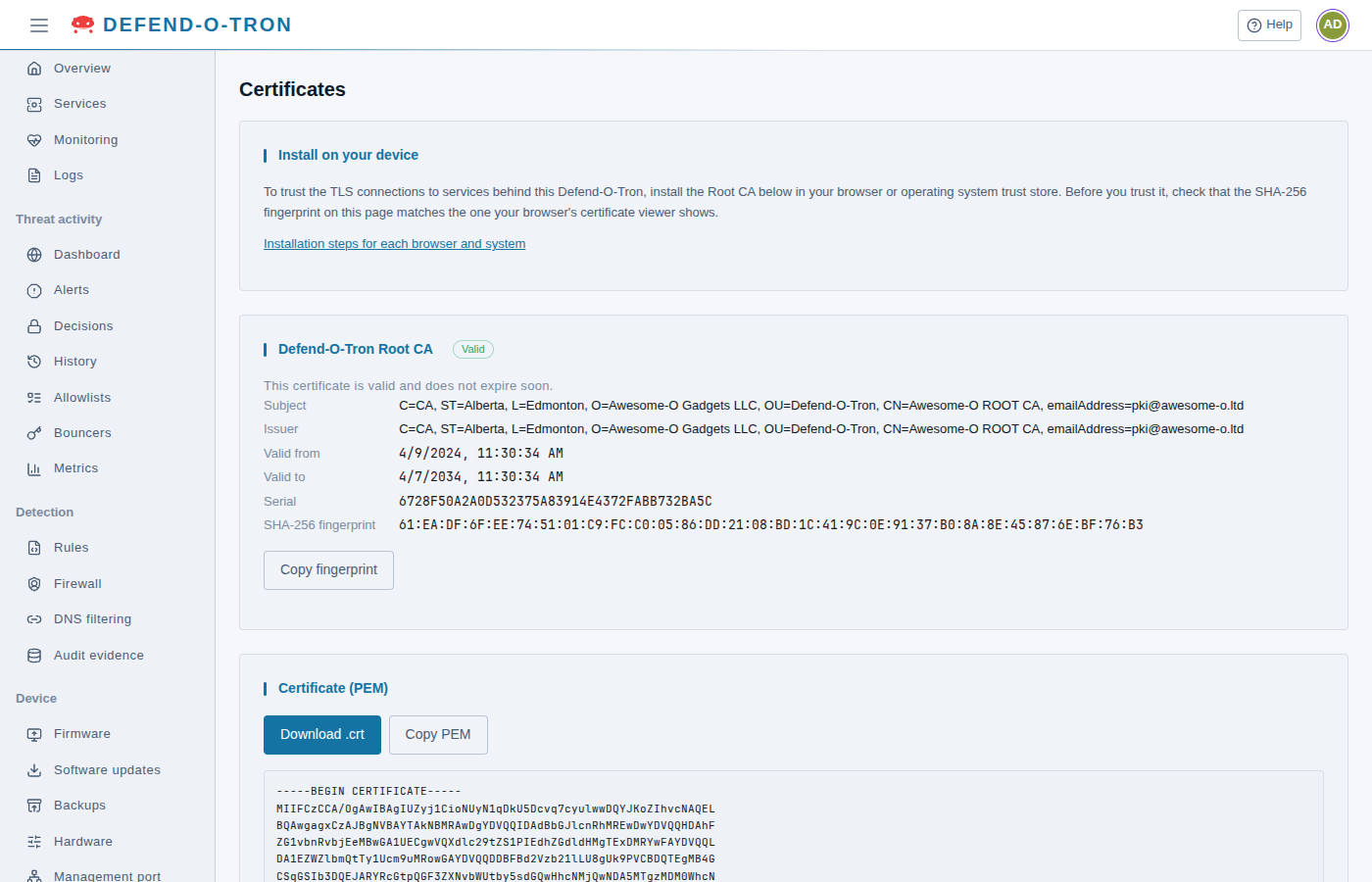
The first-time setup’s Root CA step offers the same download.
¶ Check the certificate before you install
Before you trust the certificate, check that it is the one your device shows. When you open the downloaded file, your system shows the certificate’s details: it is issued to and by Awesome-O ROOT CA, from Awesome-O Gadgets LLC. Its SHA-256 fingerprint must match the one on the device’s Certificates page. If anything is different, do not install the file.
¶ Installing the Root CA
The steps vary with your browser and operating system. If yours look different, check its own documentation.
- Open the downloaded certificate. Windows shows its details.

- Click Install Certificate.

- Click Next.

- Select Place all certificates in the following store, then click Browse.

- Select Trusted Root Certification Authorities, then click OK.

- Click Next, then Finish.

- Windows shows a security warning. Click Yes to install the certificate.
- Download the Root CA to your Downloads folder.
- Open Keychain Access: Applications → Utilities → Keychain Access, or press ⌘+Space and search.
- Select the System keychain in the sidebar.
- Drag the downloaded
.crtfile onto the System keychain. macOS asks for an administrator password. Enter it. - Find the new Awesome-O ROOT CA entry and double-click it.
- Expand the Trust section.
- Set When using this certificate to Always Trust.
- Close the window. macOS asks for your administrator password again to save the trust change.
Certificates trusted in the System keychain are used by Safari, Edge, Chrome and most native macOS apps. Firefox can use its own trust store. See the Firefox tab.
The command depends on which family your distribution belongs to.
¶ Debian / Ubuntu / Linux Mint / Raspberry Pi OS
sudo cp defend-o-tron-root-ca.crt /usr/local/share/ca-certificates/defend-o-tron.crt
sudo update-ca-certificates
update-ca-certificates reports 1 added on first install. Later runs report 0 added because the file is already in place.
¶ RHEL / CentOS / Rocky / AlmaLinux / Fedora
sudo cp defend-o-tron-root-ca.crt /etc/pki/ca-trust/source/anchors/
sudo update-ca-trust
¶ Arch / Manjaro / EndeavourOS
sudo trust anchor --store defend-o-tron-root-ca.crt
¶ Checking the install
On any of the above, confirm that the trust update worked:
curl -sS -o /dev/null -w '%{http_code}\n' https://defend-o-tron.protected.lan/login
200, with no certificate error, means the trust is in place. If you still see a TLS error, restart the program you are using (browser, application and so on) so that it reads the new trust store.
Long-running services (containers, systemd units) usually need a restart to pick up new CAs. They read the trust store when they start.
On Linux, Chrome, Chromium and Firefox do not use the system store above. Add the Root CA to them as well: see the Chrome and Edge and Firefox tabs.
Firefox can keep its own certificate trust store, separate from the operating system’s. If you use Firefox to manage the Defend-O-Tron, import the Root CA there too.
- Open Firefox.
- Open Settings → Privacy & Security.
- Scroll down to Certificates and click View Certificates….
- Select the Authorities tab.
- Click Import….
- Select the downloaded
.crtfile. - Check Trust this CA to identify websites.
- Click OK.
The Awesome-O ROOT CA now appears in the Authorities list, and Firefox trusts the device’s pages.
On Windows and macOS, Firefox can also use the certificates you installed in the operating system, when the
security.enterprise_roots.enabledpreference istrueinabout:config. Do not rely on it: if Firefox still warns about the device’s pages, import the Root CA as above. On Linux, always import it in Firefox.
On Windows and macOS, Chrome and Edge normally trust the certificates you installed in the operating system (see the Windows and macOS tabs). Some setups, such as browsers managed by an organization, do not. On Linux, Chrome and Chromium keep their own certificate store and never use the system store.
To check, open the device’s web interface in the browser after you install the Root CA, and restart the browser first. If it still shows a certificate warning, import the Root CA into the browser itself:
- Open
chrome://settings/certificates(in Edge,edge://settings/privacy, then Manage certificates). - Find the certificates installed on your computer, and import
defend-o-tron-root-ca.crtas a trusted certificate. On Windows, choose the Trusted Root Certification Authorities store. - Restart the browser.
The names of these menus change between browser versions. If yours look different, look for the browser’s certificate manager in its privacy or security settings.
¶ Linux from the command line
Chrome and Chromium on Linux keep their certificates in an NSS database. Install the NSS tools (libnss3-tools on Debian and Ubuntu, nss-tools on Fedora and RHEL), close the browser, then run:
DB="$HOME/.local/share/pki/nssdb"
[ -d "$HOME/.pki/nssdb" ] && DB="$HOME/.pki/nssdb"
certutil -d sql:"$DB" -A -t "C,," -n "Awesome-O ROOT CA" -i defend-o-tron-root-ca.crt
C,, trusts the Root CA to identify websites, and nothing else. Chrome 146 and later keep the database in ~/.local/share/pki/nssdb. Older versions used ~/.pki/nssdb, which Chrome still uses if it exists.