¶ DNS Protection with AdGuard Home
Detection → DNS filtering shows the DNS filter at work. The Defend-O-Tron ships with AdGuard Home built in. It is a network-wide DNS resolver that filters ads, trackers, malware, phishing and other unwanted content for every device that uses it. Point your router’s DHCP server (or your devices directly) at the Defend-O-Tron’s management IP, and every DNS lookup passes through AdGuard’s filtering. The step-by-step guide is Use the Defend-O-Tron for DNS.
The DNS filter is optional. The Defend-O-Tron’s core defense (CrowdSec, Suricata and the honeypot) works without it. If you don’t want DNS filtering, leave your network’s DNS pointed at your existing resolver. Everything else still works.
¶ An added layer of protection
DNS filtering sits on top of the Defend-O-Tron’s main protection; it does not replace it. The firewall, CrowdSec and Suricata watch the traffic itself, for every device on your network. The DNS filter works one step earlier: when a device asks for the address of a website, AdGuard checks the name against the blocklists below. If the name is known to be harmful, the device never gets an address and never connects.
That earlier step catches things the traffic checks cannot always see. Most websites use HTTPS, which hides the address of the page being visited, but not the name being looked up.
¶ Turning it on for your network
Filtering works only for lookups that reach the Defend-O-Tron. There are three ways, all with steps in Use the Defend-O-Tron for DNS:
- Your router hands out the Defend-O-Tron as the DNS server. Every device is filtered, and AdGuard sees each one. This is the usual choice.
- Your own DNS server forwards every lookup to the Defend-O-Tron. Every device is filtered, but AdGuard sees only your DNS server, so per-device rules do not work.
- One device at a time, for example to try the filter first.
A device set to use another DNS server, or one that uses encrypted DNS of its own (some browsers and phones do), skips this layer. It is still covered by everything else.
The
*.protected.lannames need the Defend-O-Tron’s DNS too.defend-o-tron.protected.lan,adguard.protected.lanandcrowdsec.protected.lanonly work when your computers’ lookups for protected.lan reach the device, either through one of the ways above or by forwarding only protected.lan to it. Without that, open the web interface athttps://<management ip>/.
¶ Where lookups go
AdGuard answers from its blocklists and its cache first. It sends the other lookups to two public resolvers, Quad9 and Cloudflare, over encrypted DNS (DNS-over-HTTPS), sharing the load between them. Your ISP cannot read those lookups. You can choose other resolvers in AdGuard under Settings → DNS settings.
¶ The DNS Filtering Page
In the Defend-O-Tron’s web interface, open Detection → DNS filtering. Its Dashboard tab shows the same figures as AdGuard’s own dashboard, over the last 24 hours:
- whether protection is on;
- how many lookups there were and how many were blocked;
- how many of those were malware or phishing, and how many were adult content;
- how fast AdGuard answers;
- a small trend on each figure over the day;
- the most-blocked sites, each with its share;
- Upstream servers: the resolvers AdGuard asks, whether each one is working, and its share of the answers. Click Test now to test them again.
Administrators also see the sites looked up most and which devices asked, and the Query log tab. Those show what people on your network visit, so other roles don’t get them.
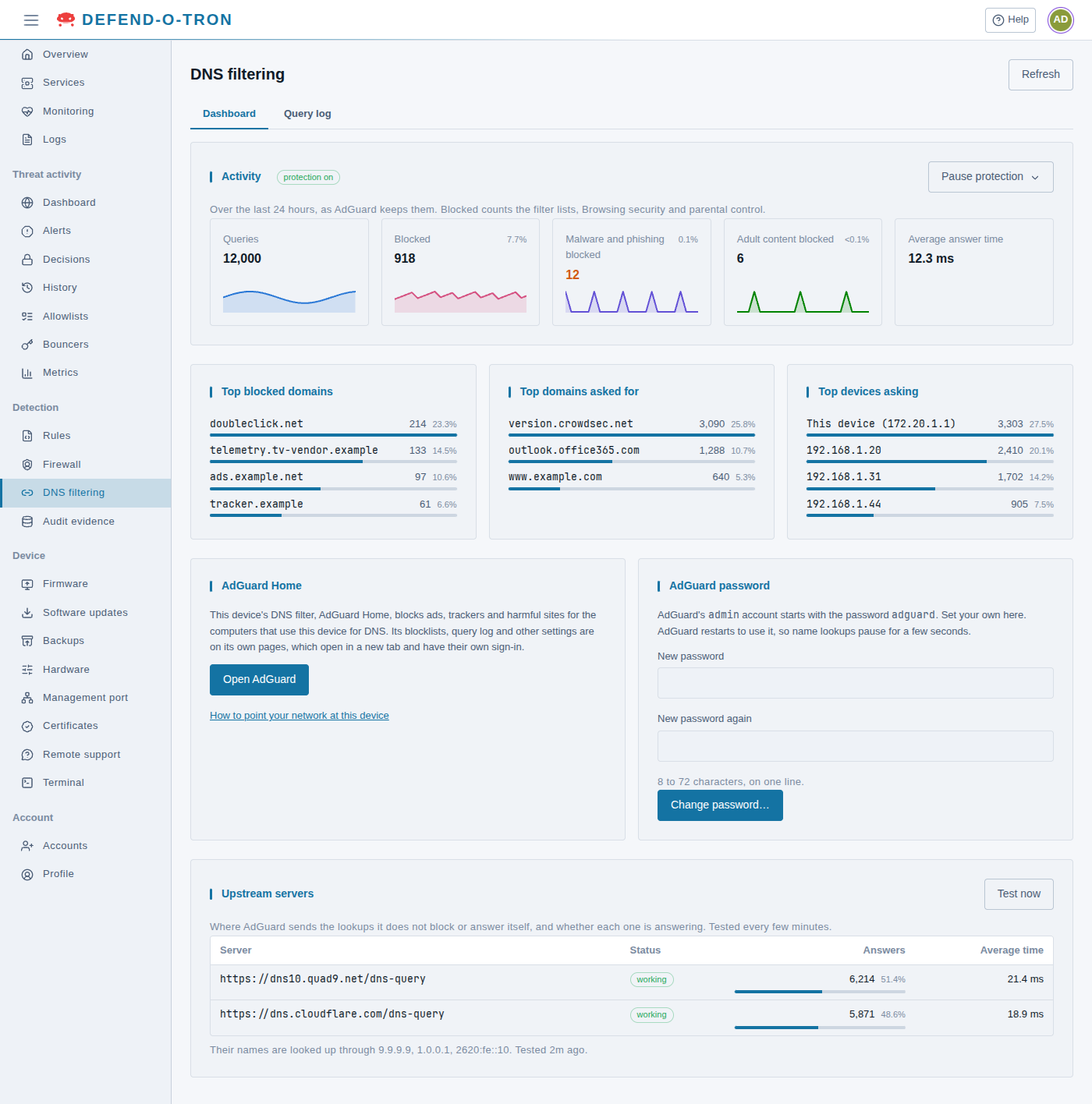
To change AdGuard’s settings, click Open AdGuard. It opens AdGuard’s own pages in a new tab. You can also open them at https://adguard.protected.lan, once your computer finds protected.lan names through the Defend-O-Tron.
¶ AdGuard’s password
AdGuard Home has its own sign-in, separate from the Defend-O-Tron’s web interface. The default sign-in is admin / adguard, and AdGuard does not ask you to change it.
Change the default password. Anyone on your management network who knows it can change your DNS filtering. Change it in the AdGuard password card on the DNS filtering page: see Change the DNS Filter’s Password.
¶ Pausing protection
Sometimes a site you need is blocked and you want to check whether the DNS filter is the reason. Administrators can pause protection for a short time: click Pause protection, choose 30 seconds, 1 minute, 10 minutes, 1 hour or 24 hours, then confirm.
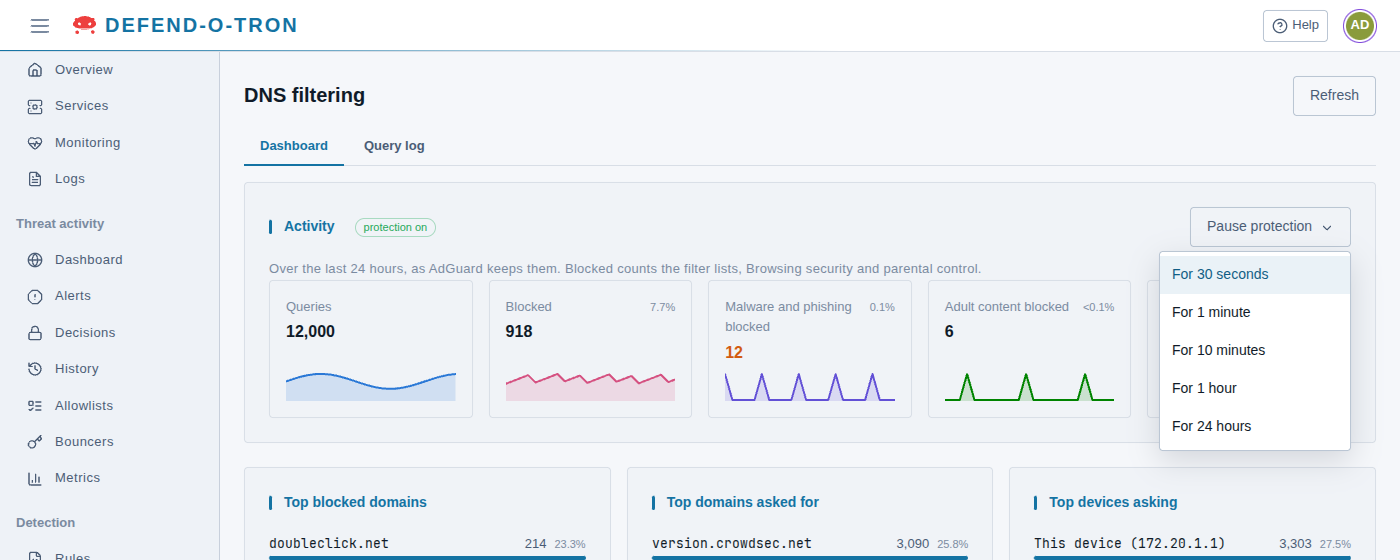
While protection is paused, AdGuard blocks nothing for every device that uses the Defend-O-Tron for DNS, not only yours. The page shows when protection comes back on, and AdGuard turns it back on by itself at that time. To turn it back on sooner, click Turn protection back on. Each pause, and who made it, is recorded in the audit log.
If a site works while protection is paused, look it up in the Query log to see which list blocked it, then allow it in AdGuard’s own pages. That is better than pausing protection again.
¶ The query log
The Query log tab lists the newest lookups first: what was asked, whether it was blocked and by which list, how long the answer took, and which device asked. Search for a site or a device, choose which answers to show, and use Load older to go further back. To allow or block a site, click Open in AdGuard.
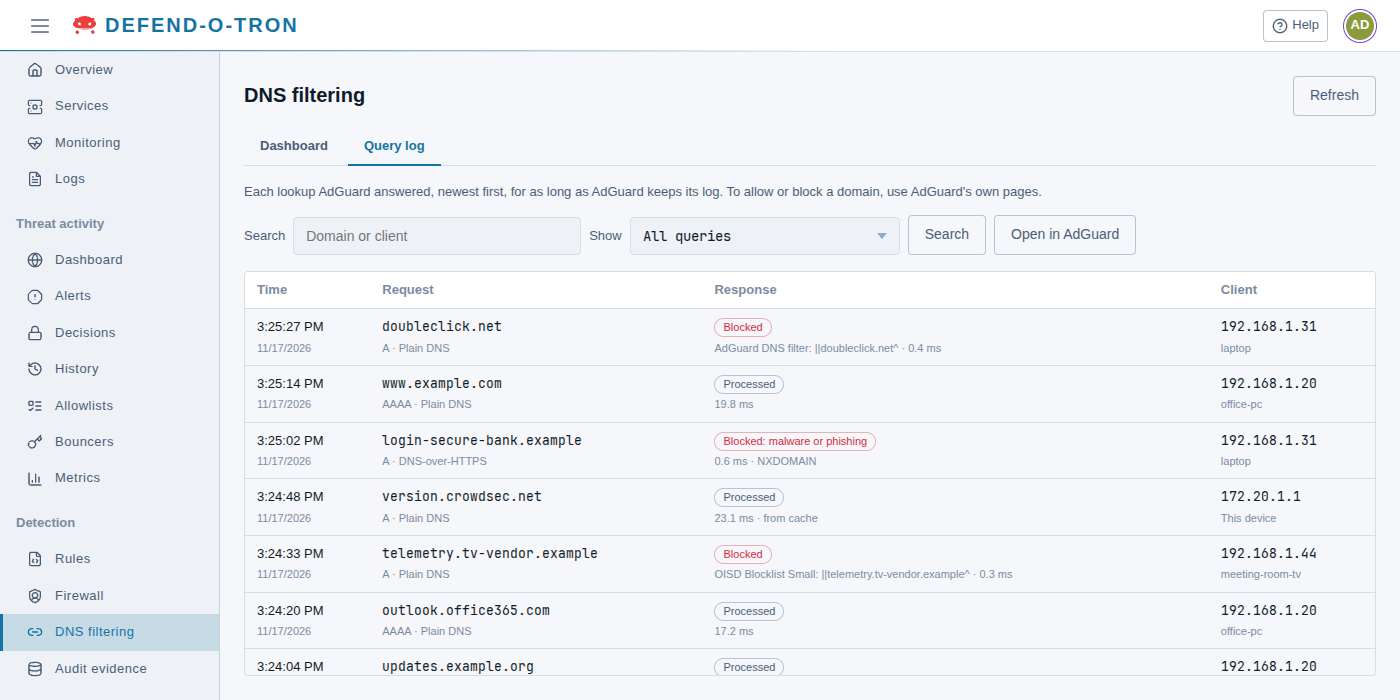
AdGuard keeps its query log for 90 days and its statistics for 24 hours. You can change both in AdGuard under Settings → General settings.
Common uses of the query log:
- Investigating false positives. “Why is this site failing to load?” Find the lookup, see which blocklist matched, and allow the site if appropriate.
- Auditing IoT chatter. Smart devices often phone home to surprising places. The query log shows you exactly where.
- Spotting compromised devices. Random-looking names (often made by domain generation algorithms), repeated lookups of unfamiliar top-level domains, or sudden bursts of new names all show up here first.
For long-term tamper-evident records, the Defend-O-Tron’s audit subsystem keeps a signed record of DNS anomalies alongside AdGuard’s log. See Compliance Reporting.
¶ Filtering and Blocking
¶ Blocklists
The Defend-O-Tron turns on these blocklists. AdGuard downloads a fresh copy of each one every 24 hours.
| Blocklist | What it blocks |
|---|---|
| AdGuard DNS filter | Ads, trackers and social media tracking. It is made from AdGuard’s own lists and EasyList and EasyPrivacy, cut down for DNS blocking. |
| OISD Blocklist Small | Ads and trackers, chosen so that websites keep working. |
| Steven Black’s List | Ads (adware) and malware sites, from a widely used combined list. |
| Phishing URL Blocklist (PhishTank and OpenPhish) | Phishing sites: fake login, bank and shopping pages that try to steal passwords and card numbers. |
| Dandelion Sprout’s Anti-Malware List | Malware, scam and other harmful sites. |
| Malicious URL Blocklist (URLhaus) | Sites that are spreading malware right now, from abuse.ch’s URLhaus database. On a V100 this list replaces the same checks in Suricata, which saves memory. |
Browsing security is also on. It checks each name against AdGuard’s own list of malware and phishing sites. To do that, AdGuard’s servers are sent a short piece of a scrambled (hashed) form of the name, not the name itself. You can turn it off in AdGuard under Settings → General settings.
In AdGuard’s own pages you can also:
- Turn the blocklists on or off one by one.
- Add other blocklists by URL. Many specialised lists exist, for example against crypto-miners or for particular regions.
- Write your own rules in AdGuard’s filter-rule syntax, which is like uBlock Origin and Adblock Plus rules. Use them to allow or block particular domains, subdomains or patterns.
- Allow domains that are blocked by mistake.
¶ Blocked services
AdGuard can block whole services, such as Facebook, TikTok, Instagram, YouTube, Netflix or Discord, with a single click. You can also give the blocking a schedule, for example only during working hours.
¶ Per-device rules
Each device on your network can have its own filtering profile, for example:
- Strict filtering for children’s devices, normal blocking for everyone else.
- Heavy filtering for guest Wi-Fi, lighter for the office network.
- Tight rules for IoT devices that should only talk to their maker’s cloud.
AdGuard recognises a device by its IP address, its MAC address, or a client ID.
¶ Parental Controls
These are off by default. To use them, turn them on in AdGuard, for everyone or for particular devices:
- Parental control blocks adult websites. Like Browsing security, it checks names against AdGuard’s list by sending a hashed piece of the name.
- Safe Search makes Google, Bing, DuckDuckGo, YouTube and other search engines return only safe results.
- Blocked services with a schedule, as above, for example no games or video during homework hours.
Combine these with per-device rules to give different family members or device groups different profiles.
¶ More AdGuard Features
- DNSSEC validation checks that answers have not been tampered with, for domains that support it. It is off by default; turn it on in AdGuard under Settings → DNS settings.
- Other upstream resolvers. AdGuard supports DNS-over-HTTPS, DNS-over-TLS, DNS-over-QUIC and DNSCrypt for its upstream resolvers, so you can choose resolvers such as NextDNS or AdGuard’s own DNS instead.
¶ Common Scenarios
¶ “I want minimal interference: just ads and trackers”
Keep the default blocklists. Leave parental controls and blocked services off, and per-device rules unset. Most users stay here.
¶ “I want to protect a child’s device”
Find the device’s IP or MAC address. Add it as a client in AdGuard, then turn on parental control, Safe Search and the blocked services you want for that client only. Other devices keep the default profile.
¶ “I want guest Wi-Fi to be heavily filtered”
Give the guest Wi-Fi its own subnet on your router. In AdGuard, add a client that matches that subnet, and turn on stricter blocklists, blocked services and parental control for it.
¶ “Something I expected to work is being blocked”
Open the query log, find the blocked lookup, and either allow that domain or turn off the blocklist that matched. The log tells you exactly which rule blocked it.
¶ “I think a device on my network is compromised”
Search the query log for that device’s IP address. Look for unusual names: random-looking subdomains, repeated lookups of unknown top-level domains, or sudden bursts of new names. The Compliance Reporting audit subsystem keeps a tamper-evident record of these anomalies, as evidence if you need it.
¶ Related Pages
- Honeypot: the address-based blocking. It works alongside DNS filtering.
- Compliance Reporting: tamper-evident records of DNS anomalies, for audits.
- Use the Defend-O-Tron for DNS: point your network at the DNS filter.
For deeper AdGuard Home settings, such as the full filter-rule syntax or its API, see the official AdGuard Home documentation.