¶ Connect Another System to the Block List
The Defend-O-Tron keeps a live list of addresses it has caught attacking you. Other equipment on your network, such as a branch-office router, a firewall, or a web server, can block the same addresses. To do that, the other system needs its own key from the Defend-O-Tron. This guide shows you how to make one.
In the Defend-O-Tron’s menus, a system that reads the block list is called a bouncer.
¶ Before you start
- Sign in to the Defend-O-Tron’s web interface as an administrator.
- The other system needs bouncer software installed. The CrowdSec API page has set-up examples for Linux firewalls, NGINX, Traefik, MikroTik, and pfSense.
- The other system must be on your management network, and its address must be allowed on the Firewall page (see step 5).
¶ Step 1: Open the Bouncers page
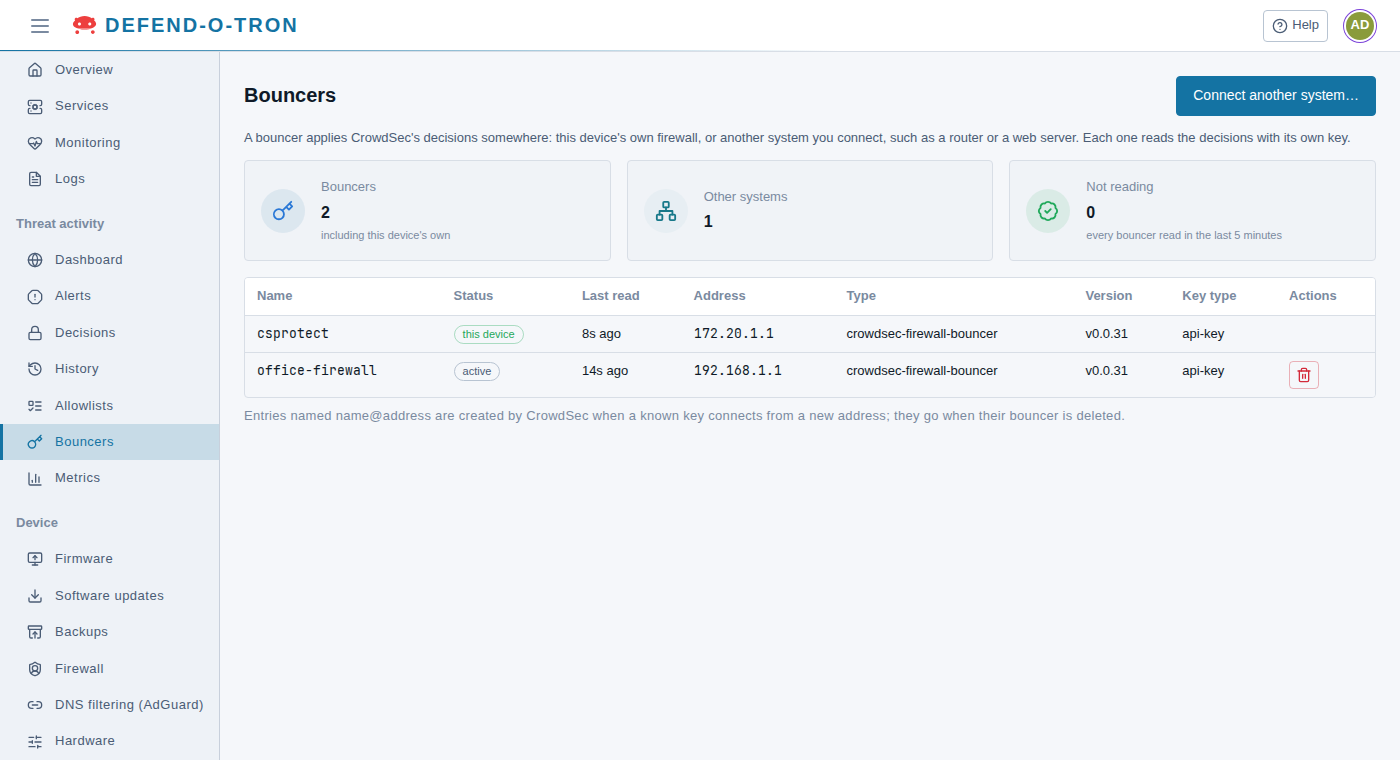
In the menu on the left, under Threat activity, click Bouncers.
The list shows every system that reads the block list. The first one, marked this device, is the Defend-O-Tron’s own firewall. It can’t be deleted.
¶ Step 2: Name the new system
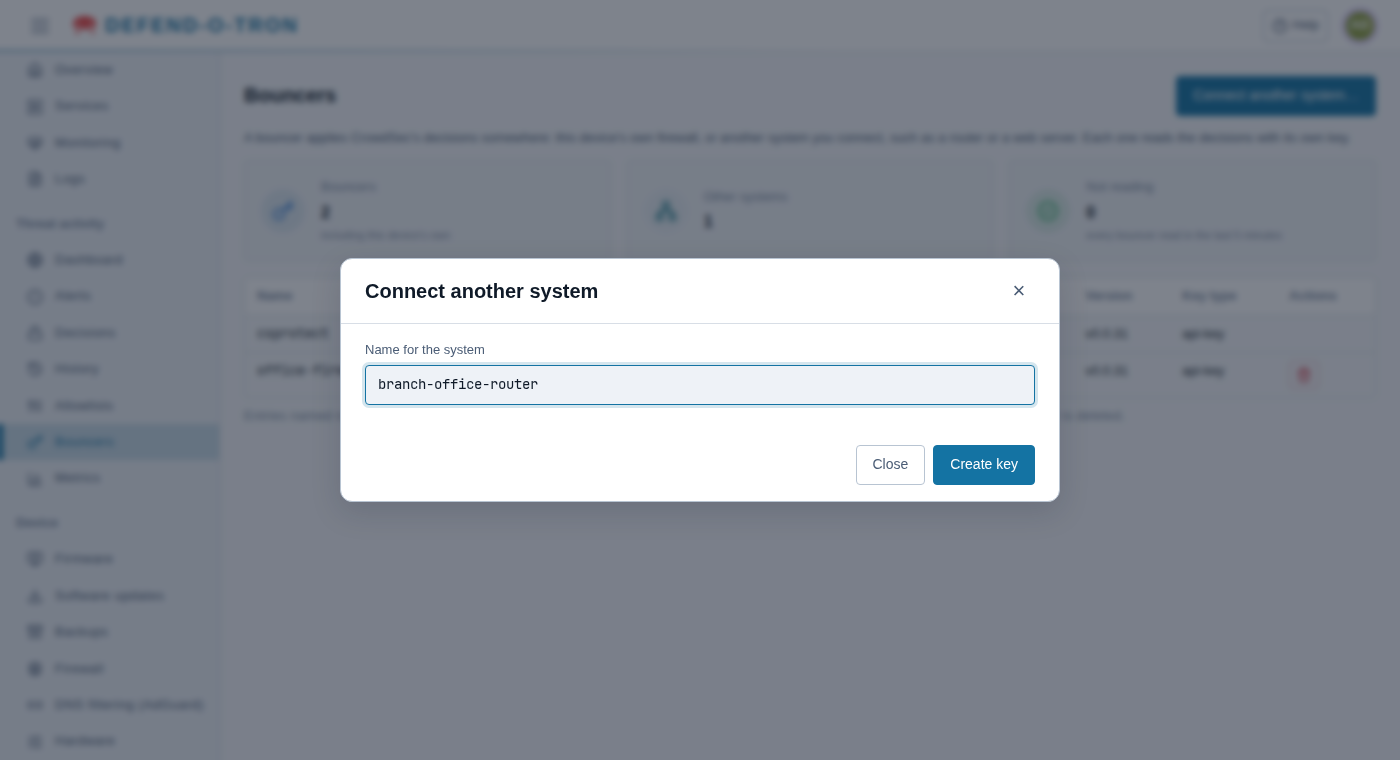
- Click Connect another system… at the top right.
- Type a name that tells you which system this is, for example
branch-office-routerorweb-server-01. Use letters, numbers, dots, dashes, or underscores, up to 64 characters. - Click Create key.
¶ Step 3: Copy the key
The Defend-O-Tron shows the key, and everything else the other system needs to connect:
- Address (api_url): where the other system connects, normally
https://crowdsec.protected.lan/lapi. - Key (api_key): the new key. Click Copy key and keep it somewhere safe until you enter it on the other system.
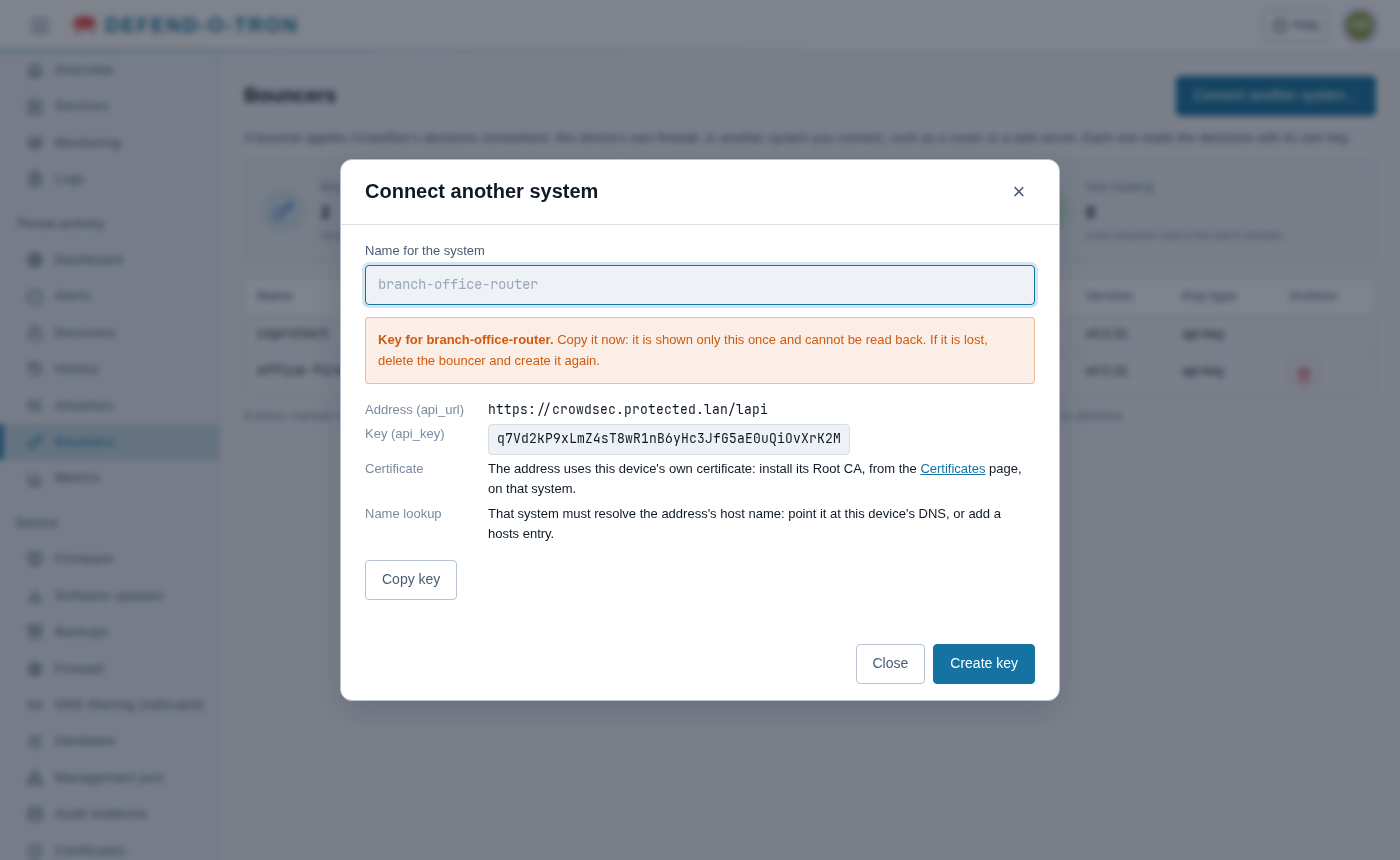
The key is shown only once. The Defend-O-Tron keeps no copy that can be read back. If you lose it, delete the bouncer (step 7) and create a new one.
Click Close when you have copied it.
¶ Step 4: Prepare the other system
The other system connects securely by name, so it needs two things before the key will work:
- Trust the Defend-O-Tron’s certificate. Download the Root CA from the Certificates page and install it on the other system. See Certificates.
- Find the Defend-O-Tron by name. The other system must be able to look up
crowdsec.protected.lan. The easiest way is to send its DNS lookups forprotected.lanto the Defend-O-Tron. See Use the Defend-O-Tron for DNS.
¶ Step 5: Allow the other system through the firewall
The Defend-O-Tron only answers systems it has been told to trust.
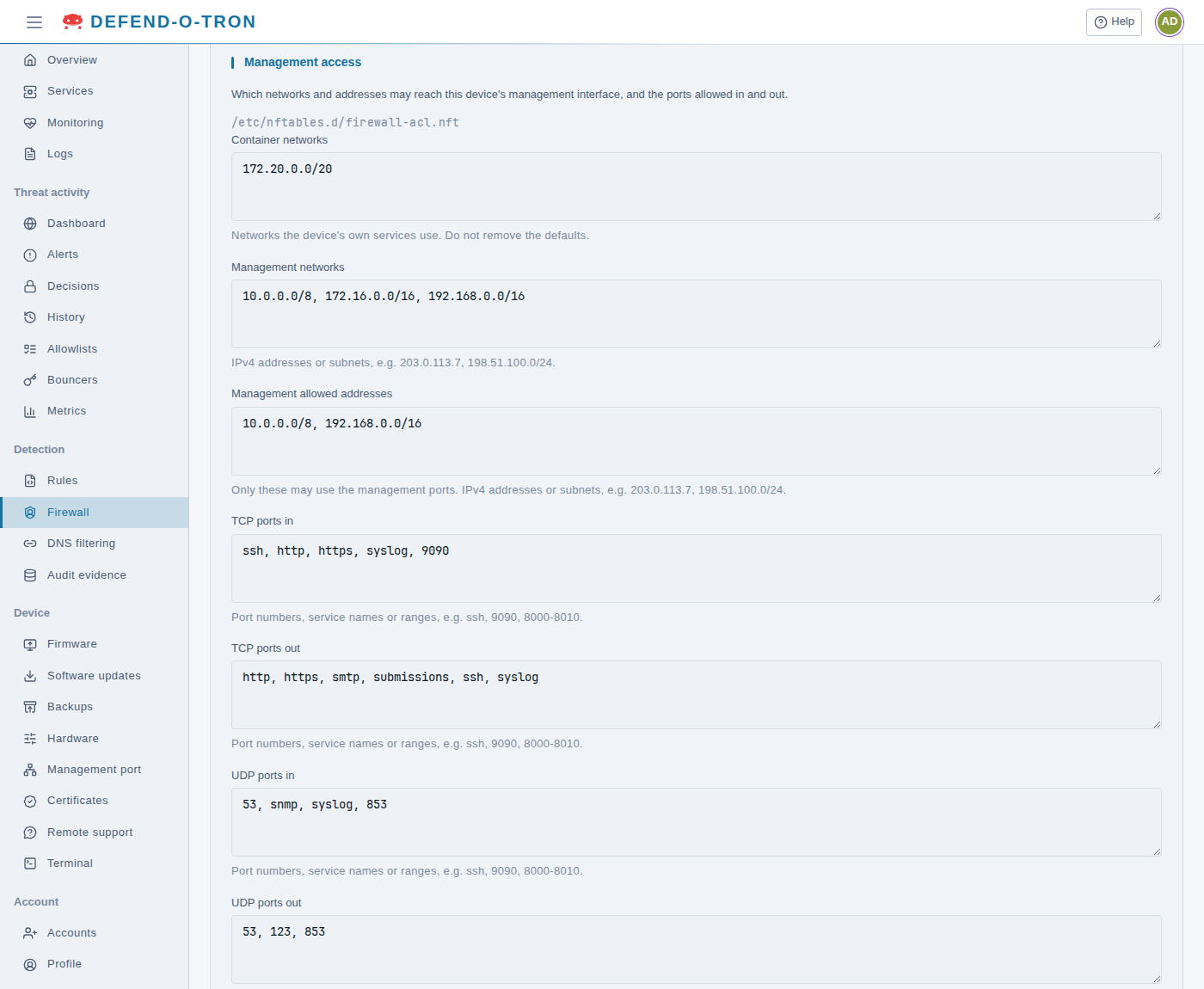
- In the menu, under Detection, click Firewall.
- Find the Management access card.
- Check that the other system’s address is covered by Management allowed addresses. If it isn’t, add it (for example
192.168.20.5, or a whole network such as192.168.20.0/24). Separate entries with commas. - Its network must also be in Management networks. Add it there too if it is missing.
- Click Save and apply.
The Defend-O-Tron checks a change before saving it, and refuses one that would lock you out of the web interface.
¶ Step 6: Enter the address and key on the other system
Enter the Address and Key from step 3 into the bouncer software on the other system, then start or restart it. Each product names these settings a little differently. The CrowdSec API page shows where they go for each platform.
¶ Step 7: Check that it is connected
Go back to Threat activity → Bouncers. Within a minute the new system shows a time under Last read, such as 12s ago, and its address. The Not reading box counts any system that hasn’t read the list in the last 5 minutes. It should be 0.
If Last read stays empty, see Troubleshooting.
¶ Removing a system
To stop a system from reading the block list, click the red bin button (Delete) on its row and confirm. Its key stops working at once.
To give a system a new key, delete it, then follow this guide again with the same name.
A row named like
branch-office-router@192.168.20.5is added automatically when a known key connects from a new address. It goes away when you delete the bouncer it belongs to.
¶ Related Pages
- CrowdSec API: bouncer set-up examples for each platform, and troubleshooting.
- Certificates: install the Defend-O-Tron’s Root CA.
- Use the Defend-O-Tron for DNS: let other systems find the Defend-O-Tron by name.