¶ When You Need This
Use this page only when the device cannot be fixed from the web interface: for example, it no longer starts, or its storage is damaged. For routine updates, and to go back to an earlier firmware, use the Firmware page instead. Its Installed images table can already roll back to the previous firmware or to the factory image.
Internet traffic through the Defend-O-Tron stops while you recover it. To keep your network working meanwhile, unplug the device and connect your ISP equipment straight to your firewall.
¶ Getting the Recovery Images
The recovery images are on the Awesome-O download site, firmware.awesome-o.cloud. Downloads need a user name and password. Contact Awesome-O support for them, and tell them which model you have (V100 or V200).
You also need balenaEtcher (free, for Windows, macOS and Linux) to write the image to an SD card or a USB stick.
¶ V100: Run From an SD Card
The V100 recovers with the SD card image: the device starts and runs from the SD card itself, instead of its internal storage. It keeps the device working until the internal storage is reinstalled or the device is replaced.
To reinstall the firmware on the V100’s internal storage, contact Awesome-O support.
¶ What you need
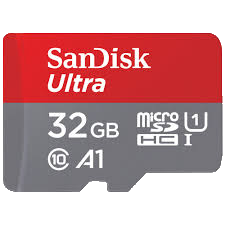
- A microSD card of 16 to 32 GB.
- A computer with an SD card reader and balenaEtcher.
- A paperclip, to press the MASK ROM button.
- An HDMI monitor and a USB keyboard, to follow the progress on screen.
¶ Write the image to the SD card
- Download the V100 SD card image from the download site.
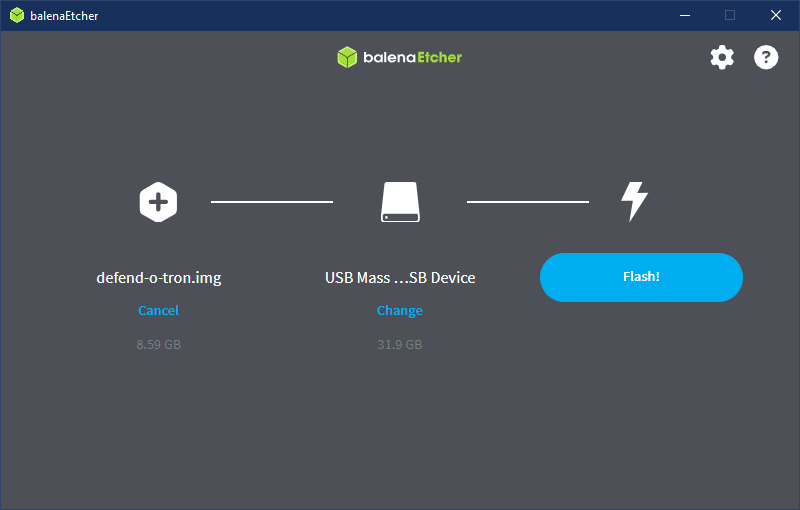
- Open balenaEtcher, choose the image and the SD card, and click Flash.
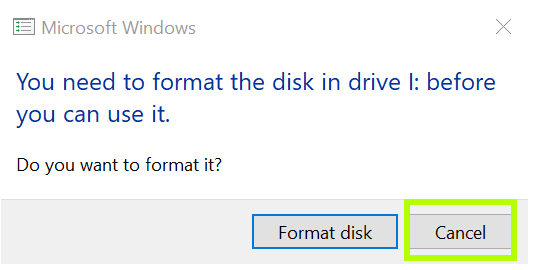
When Etcher finishes, Windows may say that it cannot read the card and offer to format it. Click Cancel. If you format the card, you must write the image again.
¶ Start the device from the SD card (MASK ROM)
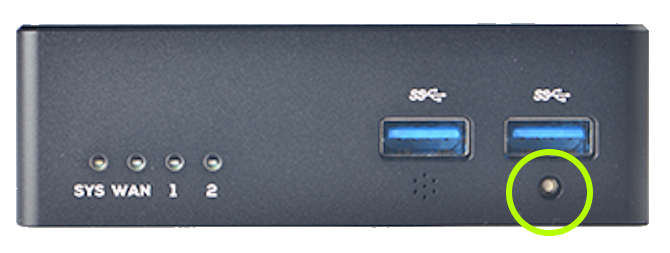
The MASK ROM button makes the device start from the SD card instead of its internal storage. This lets you recover it even when the internal storage is damaged.
Anyone who can press the MASK ROM button can replace the device’s software. Keep the Defend-O-Tron where only people you trust can reach it.
The MASK ROM button is on the side of revision 1 units:
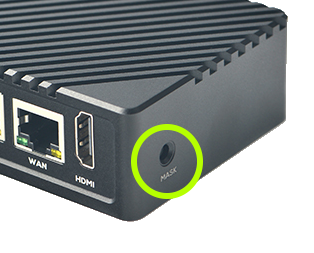
and on the front of revision 2 units:
- Turn off the device with the switch on its power cord.
- Insert the SD card into the slot on the side of the device.
- Hold the MASK ROM button down (a straightened paperclip works well) and turn the power on.
- Keep holding the button for at least 3 seconds, then release it.
- Watch the monitor. The device starts from the SD card. Leave the card in the slot: the device runs from it.
When the device has started, sign in to the web interface.
¶ V200: Reinstall From a USB Installer
The V200 reinstalls from a USB installer. The installer can keep your settings, so a reinstall does not have to start from scratch.
¶ What you need
- A USB stick large enough for the installer. Everything on it is erased.
- A computer with balenaEtcher.
- A monitor (HDMI or DisplayPort) and a USB keyboard for the V200.
¶ Write the installer to the USB stick
- Download the V200 USB installer from the download site.
- Open balenaEtcher, choose the installer and the USB stick, and click Flash.
¶ Install
- Plug the USB stick, the monitor and the keyboard into the V200, and turn it on.
- Open the device’s boot menu and choose the USB stick. The installer never starts installing by itself.
- At the login prompt, log in as
adminwith the passwordadmin. It asks you to choose a new password. This password is only for the installer session. - Run
sudo -i, thendot-provision. - The installer proposes the disks to use. Press Enter to accept the proposal.
- If the device already has settings, the installer asks Keep or wipe?
- keep: reinstalls the firmware and keeps your settings, containers and the device’s identity. This is the normal choice.
- wipe: a factory-fresh install. All settings and data are erased.
- The installer asks for an identity blob. Press Enter to skip. With keep, the device’s identity is carried across automatically.
- The installer shows its plan. Check it, then type
yesto install. - When it has finished, remove the USB stick and restart the device.
Contact Awesome-O support before you choose wipe. A wiped device must be enrolled again for firmware updates and remote support, and a wipe also asks which network port is which. Support can guide you through both.
After a wipe, the device starts like a new one. Sign in with the user name admin and the password admin, and run the first-time setup.
¶ Related Pages
- Firmware: routine updates, and rolling back to an earlier firmware.
- Admin Interface: signing in after a recovery.
- V100 Specifications: the V100 hardware.