The Defend-O-Tron supports two separate firmware update paths, each for a different situation:
- Routine in-place firmware updates are done from the web interface. The Defend-O-Tron pulls a new firmware image, stages it on the device, and switches over on the next reboot. This is the day-to-day path you’ll use to keep the appliance current.
- Recovery is for a device damaged badly enough that rolling back in the web interface can’t fix it. A V100 runs from an SD card until its internal storage is reinstalled, and a V200 reinstalls from a USB installer. See Recovery and Reinstall.
The Defend-O-Tron also receives routine Debian package updates on the Software updates page. Those keep the underlying operating system patched and are separate from firmware updates. Both are safe to use, alongside each other. When the firmware changes, the Debian updates installed since the last firmware are replaced by the new firmware’s own packages.
¶ Routine Firmware Updates in the Web Interface
¶ Where to find it
Sign in to the web interface and open Firmware under Device in the menu. When the last check found an update, a small arrow icon shows beside Firmware in the menu.
Everyone who can open the page sees the device’s firmware status. Checking for updates, downloading firmware and switching between versions need a role with full firmware access, such as Admin.
¶ What you’ll see
¶ This device
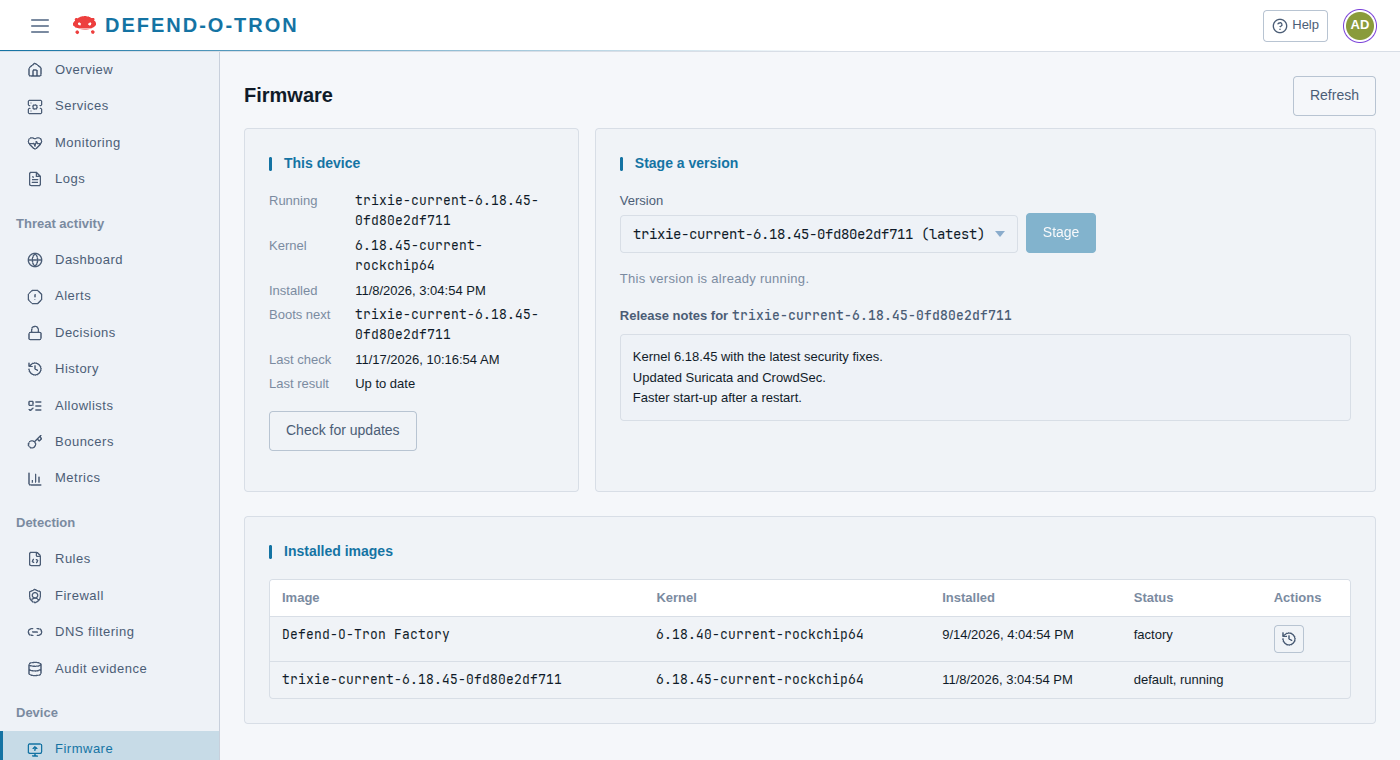
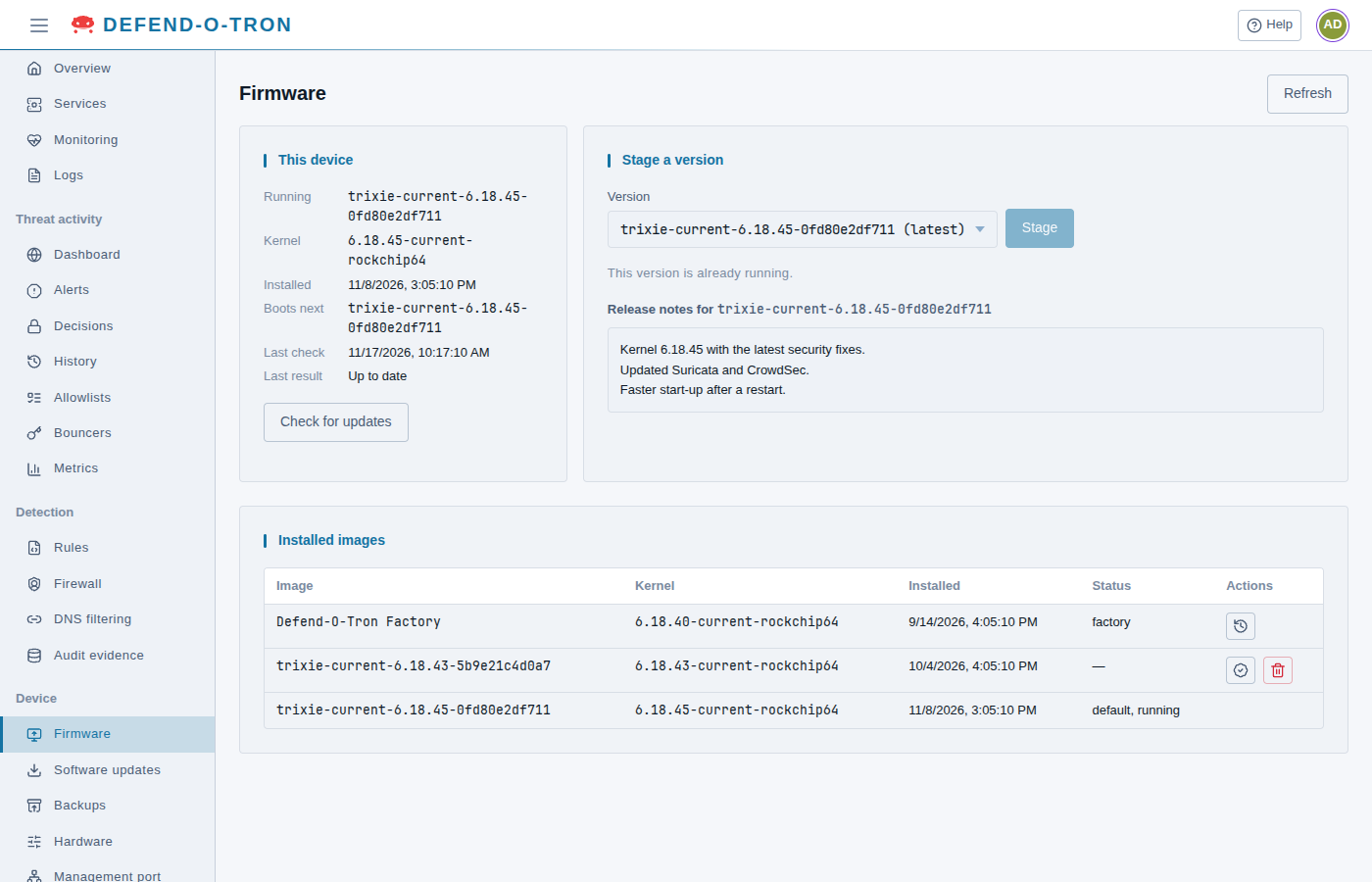
The This device card shows what the Defend-O-Tron is running and what it found the last time it checked:
- Running: the firmware running now. Factory image is the firmware the device shipped with.
- Kernel: the Linux kernel inside that firmware.
- Version or Installed: the factory image’s version, or the date a downloaded firmware was installed.
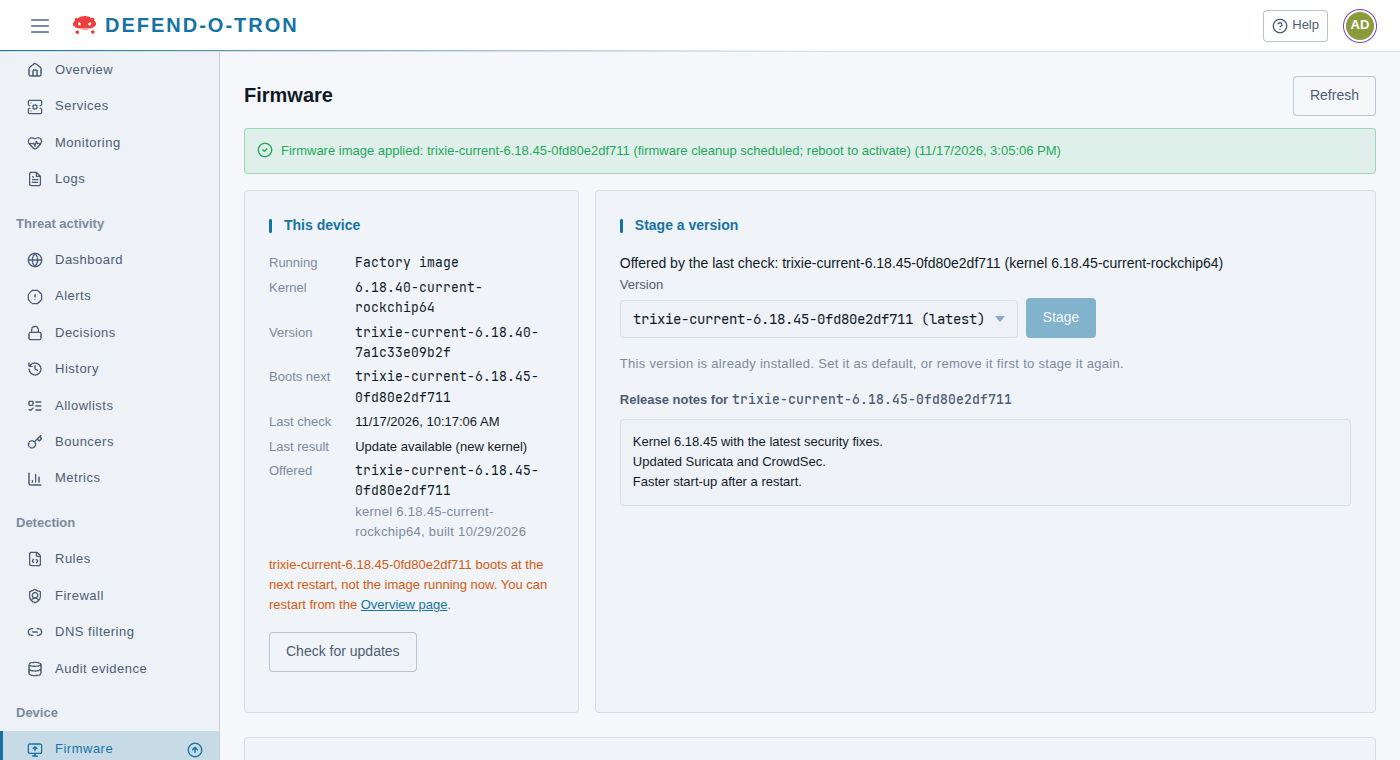
- Boots next: the firmware the device starts the next time it restarts. Usually the same as Running. When it isn’t, an orange line under the list says so, with a link to the Overview page where you can restart.
- Last check and Last result: when the device last asked the firmware server, and the answer: Up to date, Update available (new kernel), Update available (same kernel), or a warning if the server offered an older version.
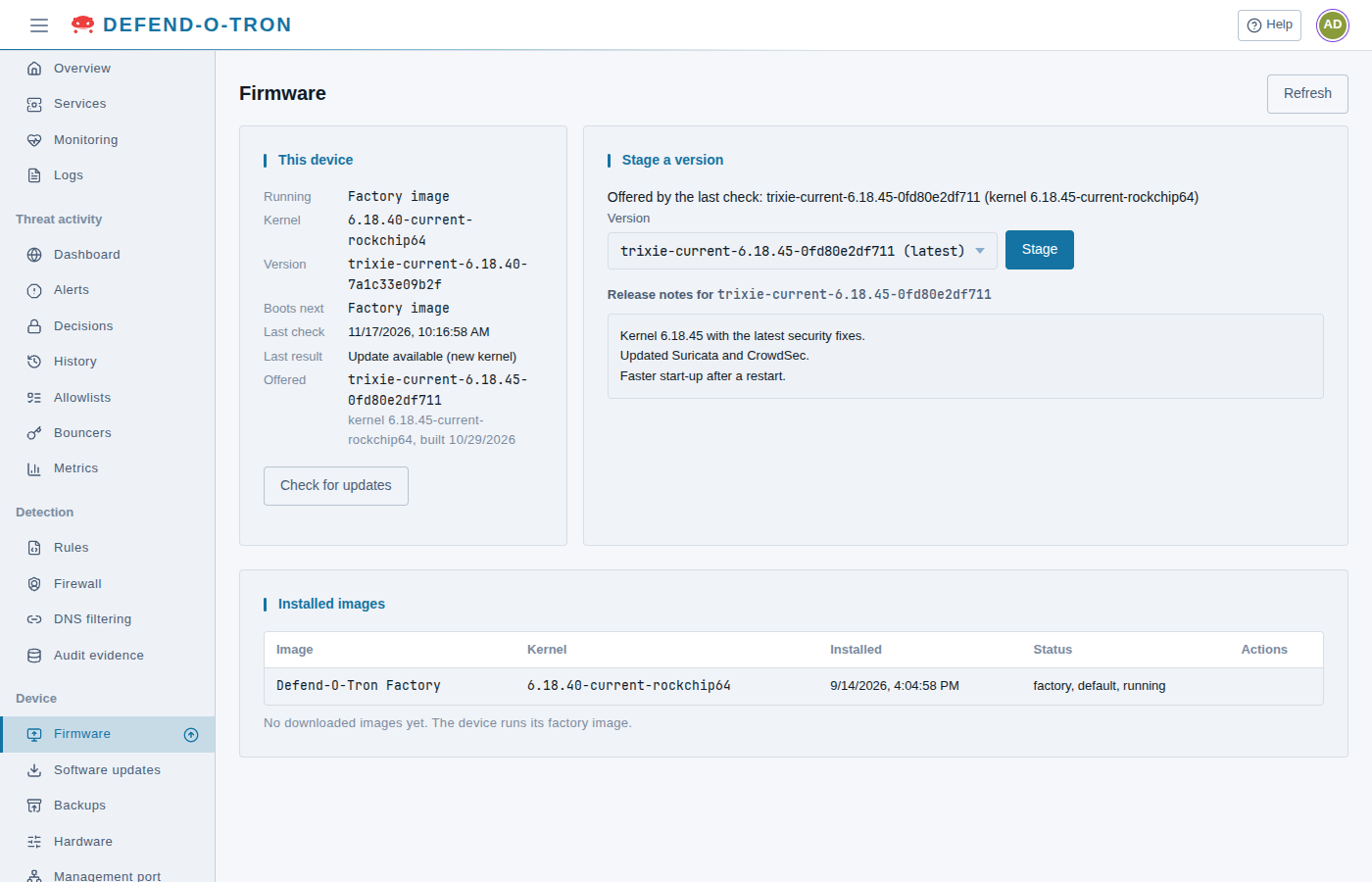
- Offered: the version the last check found, its kernel and the date it was built. It only shows when there is one.
Click Check for updates to ask the firmware server now instead of waiting for the weekly check.
¶ Stage a version
Beside it, the Stage a version card lists the versions on the firmware server, with the newest marked latest. Pick a version to read its release notes. When a version can’t be staged, a short note under the list says why, for example because it is already running or already installed.
¶ Installing a firmware update
-
On Stage a version, choose the version and click Stage. The version the last check offered is already chosen for you.
- A Staging card shows the download, then the unpacking. Downloads are typically around 750 MB and take a few minutes on a normal broadband connection.
- You can leave the page while it works. Staging carries on, and the progress shows again when you come back.
- If the version has an older kernel than the one running, you’re asked to confirm first.
-
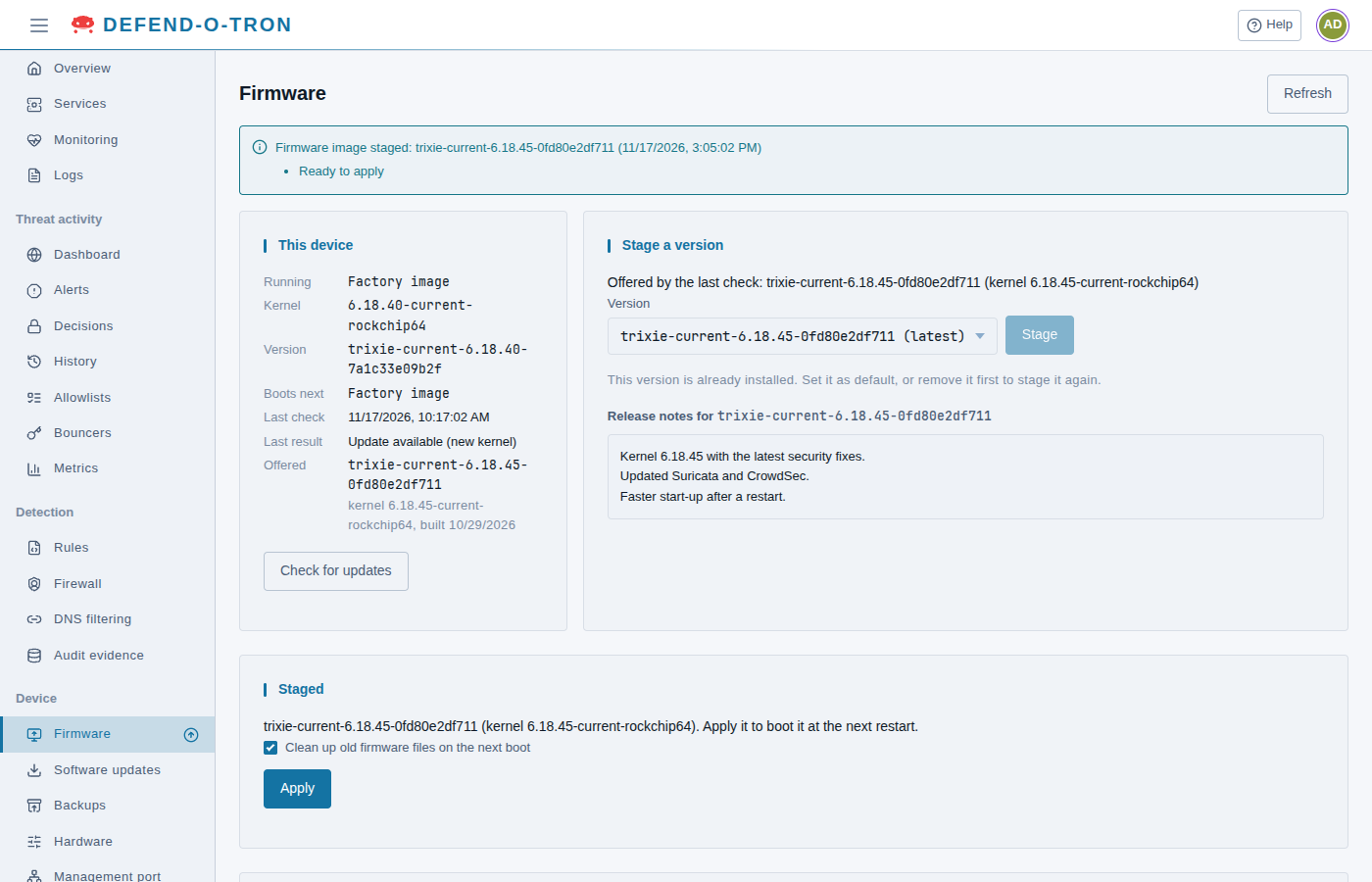
When staging finishes, a blue banner says the firmware is staged and a Staged card appears. The new firmware is on the device, but your current firmware is still running. Clean up old firmware files on the next boot comes ticked, and leaving it ticked is recommended.
-
Click Apply, then Apply again to confirm. A green banner confirms it, Boots next now shows the new version, and the orange line reminds you that a restart is needed.
-
Restart the Defend-O-Tron at a quiet time, with Restart on the Overview page. Internet traffic through the device stops while it restarts, usually for a few minutes. The page shows that the device is restarting and takes you to the sign-in page when it is back. See the admin interface page.
-
Sign in and open Firmware again. Running now shows the new version.
The previous firmware stays on the device after you apply a new one. If anything goes wrong, you can switch back to it. See Rolling back firmware below.
¶ Upgrade steps after an update
Some updates must also change settings that are already on your device, for example to replace an old settings file. These changes are upgrade steps.
- If the staged update has upgrade steps, the Staged card tells you: This update runs N upgrade steps after it restarts. You see the same sentence when you click Apply.
- After the restart, the device runs the steps before it starts its protection services. The firewall stays on all the time.
- The sign-in page shows the progress. You cannot sign in until the steps are finished. This usually takes seconds, and at most a few minutes.
- Before a step changes a file, the device keeps a copy of it.
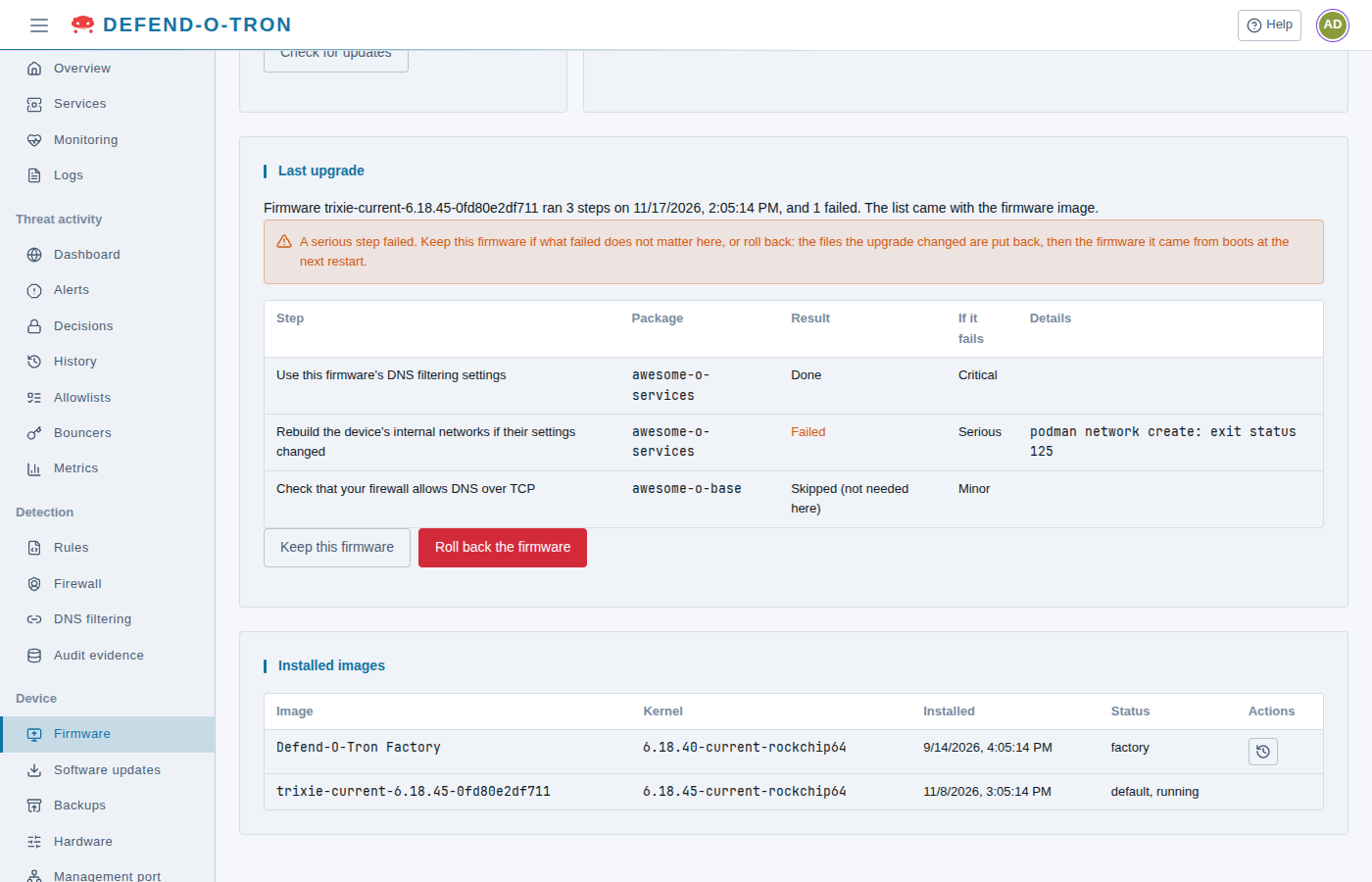
- The Last upgrade card on the Firmware page shows each step and its result.
If a step fails, the device still starts. What you see depends on how important the step is:
- Minor: the result shows on the Firmware page only.
- Serious or critical: a banner shows on every page until you choose what to do. On the Firmware page:
- Keep this firmware removes the banner. Choose this if what failed does not matter on your device.
- Roll back the firmware puts back the files that the steps changed, and makes the firmware you had before boot at the next restart. Programs that a step ran are not undone. For a critical failure, rolling back is recommended.
Each step is also in the logs (the service awesome-o-upgrade) and in the audit evidence (the Admin actions tab, Via: The device (upgrade)).
¶ Banner colours at a glance
The page shows a banner across the top whenever something important happens:
- Blue: there’s something to do next (firmware update offered, image staged).
- Green: an action just succeeded (firmware applied, rolled back or removed).
- Red: something failed. The banner explains what.
¶ Rolling back firmware
The Installed images table lists every firmware on the device: the factory image and each version you’ve downloaded, with its kernel, when it was installed, and its status. Default marks the one that boots next, running the one running now, and staged one that is waiting to be applied.
- Set default on a downloaded version makes it the one that boots next, for example the version you ran before an update. Nothing is downloaded again.
- Roll back to factory, in the factory row, makes the firmware the device shipped with boot next. The updater always keeps it on the device as a last-resort recovery point. A V200 reinstall from a USB installer replaces it with the installer’s version, and removes the downloaded versions.
- Remove deletes a downloaded version you no longer need. You can’t remove the version that’s running or the one set to boot next. It’s gone for good; to use it again you’d stage it again.
Each one asks you to confirm first. Switching firmware takes effect at the next restart.
Firmware rollback is intended for problems you discover after an update, for example a setting that didn’t carry over cleanly. It’s not a substitute for cabling the device out of your network if you suspect a serious issue.
¶ Automatic firmware checking
The Defend-O-Tron asks the firmware server for news once a week, between 3 and 4 AM on Sunday in the device’s time zone. If it was switched off then, it checks soon after it next starts. The check only looks: it never downloads or installs firmware on its own. That always waits for you.
When a check finds an update, the arrow appears beside Firmware in the menu and the version shows under Offered on the page.
¶ Recovery and Reinstall
If the device cannot be fixed from the web interface, for example it no longer starts, you can run a V100 from an SD card, or reinstall a V200 from a USB installer. See Recovery and Reinstall.