¶ Alerts
Threat activity → Alerts lists what CrowdSec has detected. An alert says that a source (an address or a range) matched a scenario, a pattern of attack such as repeated failed logins or a probe of a honeypot port. Most alerts also make a decision: a ban on the source.
The page shows the period and filters you chose on the Dashboard. Change them here in the same way, with Search and Filters (see Choose what it shows). Selecting something on the dashboard opens this page with the matching filter already set.
The buttons at the top switch between three views: Each alert, By source and Attack sessions.
¶ Each alert
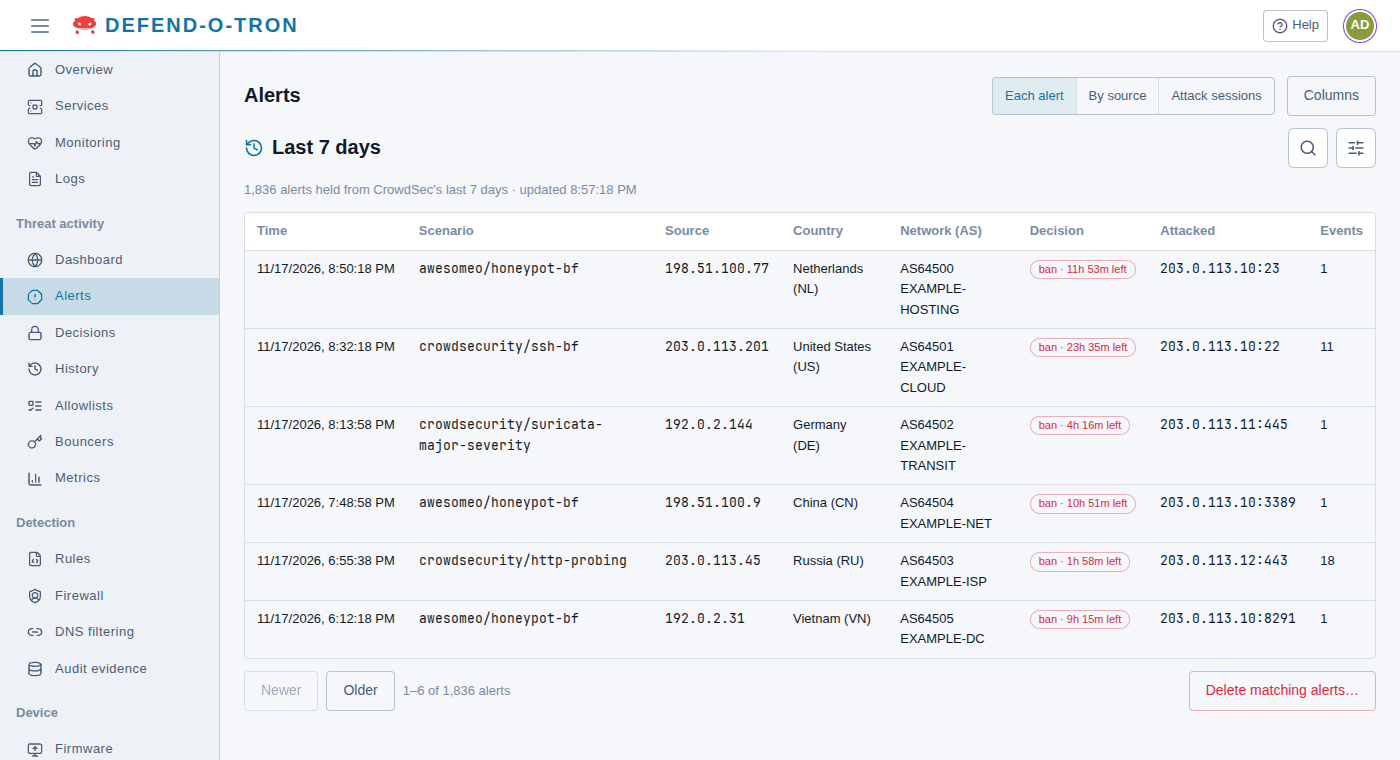
One row per alert, newest first:
| Column | What it shows |
|---|---|
| Time | When CrowdSec raised the alert |
| Scenario | What was detected, for example crowdsecurity/ssh-bf (repeated failed SSH logins) or awesomeo/honeypot-bf (a probe of a honeypot port) |
| Source | The address or range the attack came from |
| Country, Network (AS) | Where the source is, from CrowdSec’s GeoIP data |
| Decision | The decision the alert made, for example ban · 11h 53m left, or none |
| Attacked | The address and port that were attacked, when the alert names them |
| Events | How many log lines or packets made up the alert |
| Machine | Which CrowdSec engine reported it (hidden unless you choose it) |
Columns chooses which columns the table shows. This browser remembers your choice.
The page shows 50 rows at a time: Older and Newer move between pages. While you look at the newest page, new alerts appear by themselves. On an older page, the page says New alerts have arrived instead, and Show the newest goes back to the top.
¶ By source
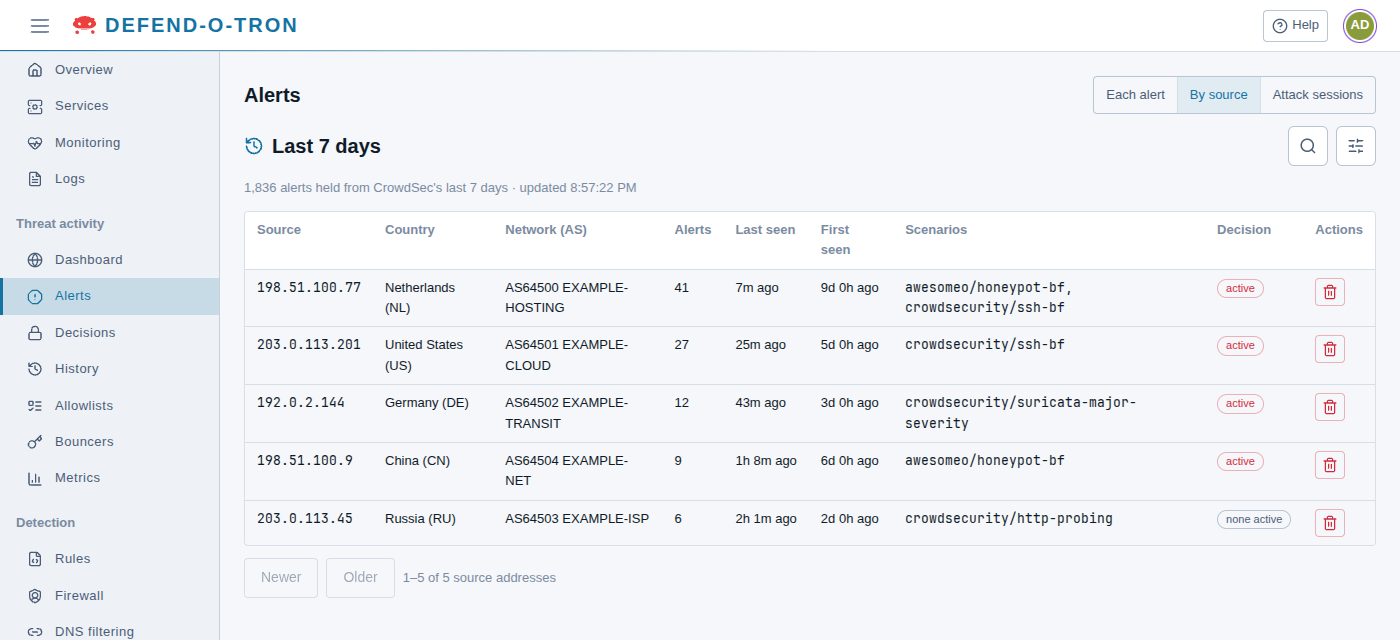
One row per source address, with its country and network, how many alerts it caused, when it was first and last seen, its scenarios, and whether any of its decisions is still active. Select a row to see that source’s alerts.
¶ Attack sessions
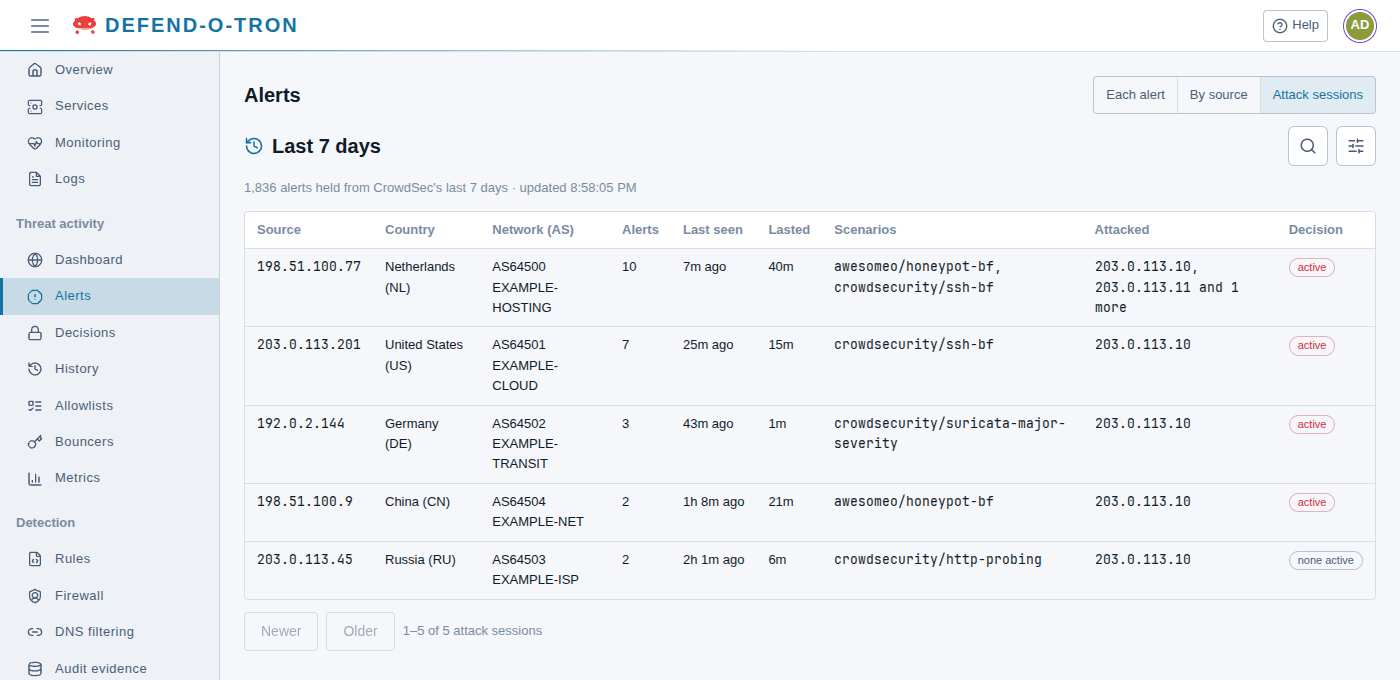
One row for each burst of alerts from a source: alerts from the same source with no gap of more than 30 minutes form one session. Each row shows how many alerts the session had, when it was last seen and how long it Lasted, its scenarios, the addresses it attacked, and whether a decision is still active. This shows at a glance whether a source made one short attack or kept coming back. Select a row to see that source’s alerts.
¶ The details of one alert
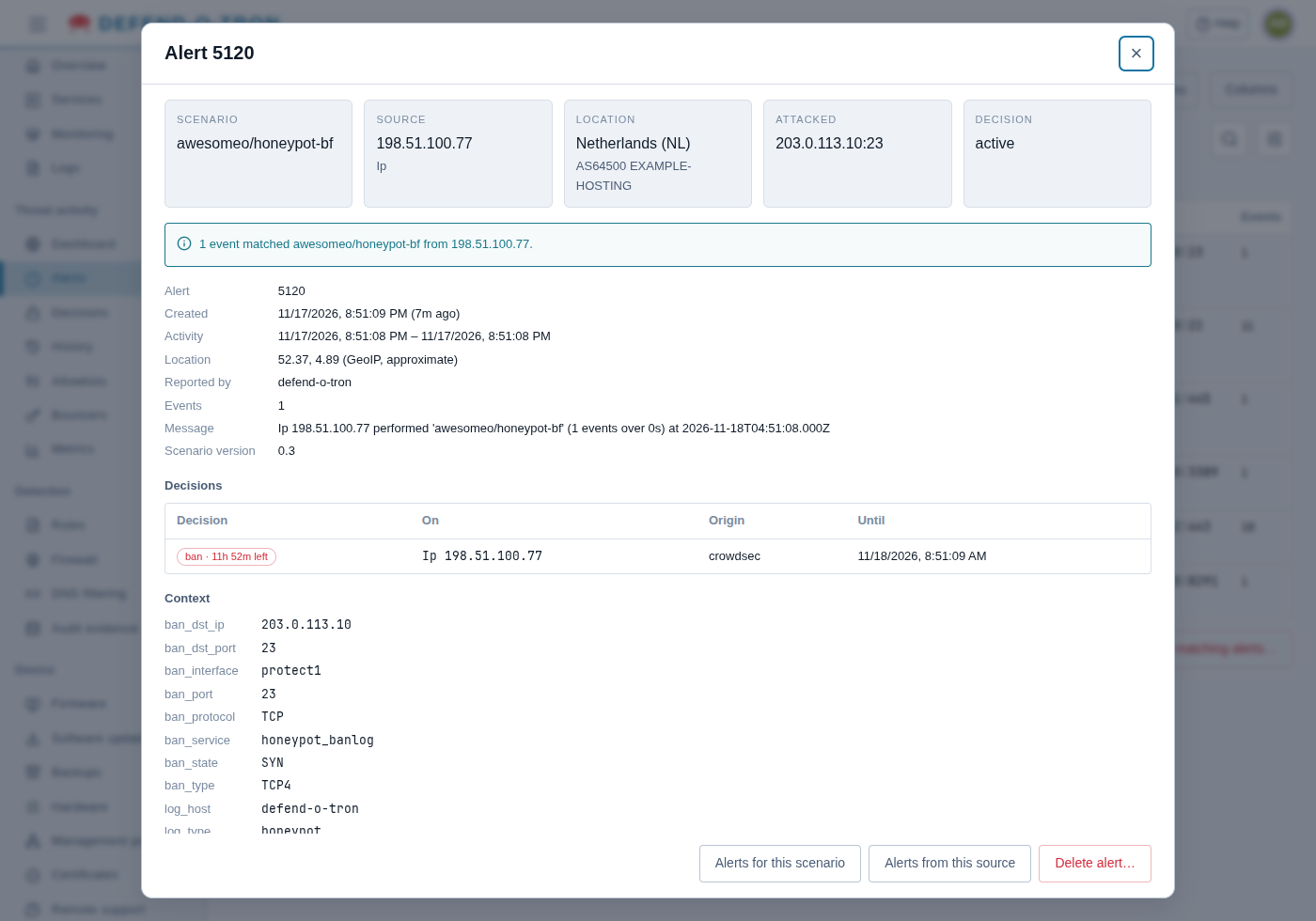
Select an alert to open its details. The top of the window repeats the scenario, the source, its location and network, what was attacked, and the state of its decision (active, expired, no decision or simulated). Below:
- Alert, Created, Activity (when the attack started and stopped), Location (approximate, from GeoIP), Reported by, Events and CrowdSec’s Message.
- Decisions: each decision the alert made, what it applies to, where it came from (its origin), and until when.
- Context: what the device recorded about the attack. For example, for a honeypot alert: the attacked address and port, the protocol, the network interface and the state of the connection.
- Events: the log lines or packets behind the alert, folded until you open them.
Alerts for this scenario and Alerts from this source open the matching alerts. The address of the window can be shared: it opens the same alert for anyone who can sign in to the device.
¶ Deleting alerts
Administrators can delete alerts from CrowdSec, for example to clear the alerts a false positive caused:
- one alert, with Delete alert… in its details
- every alert from one source, with Delete… on its row in By source
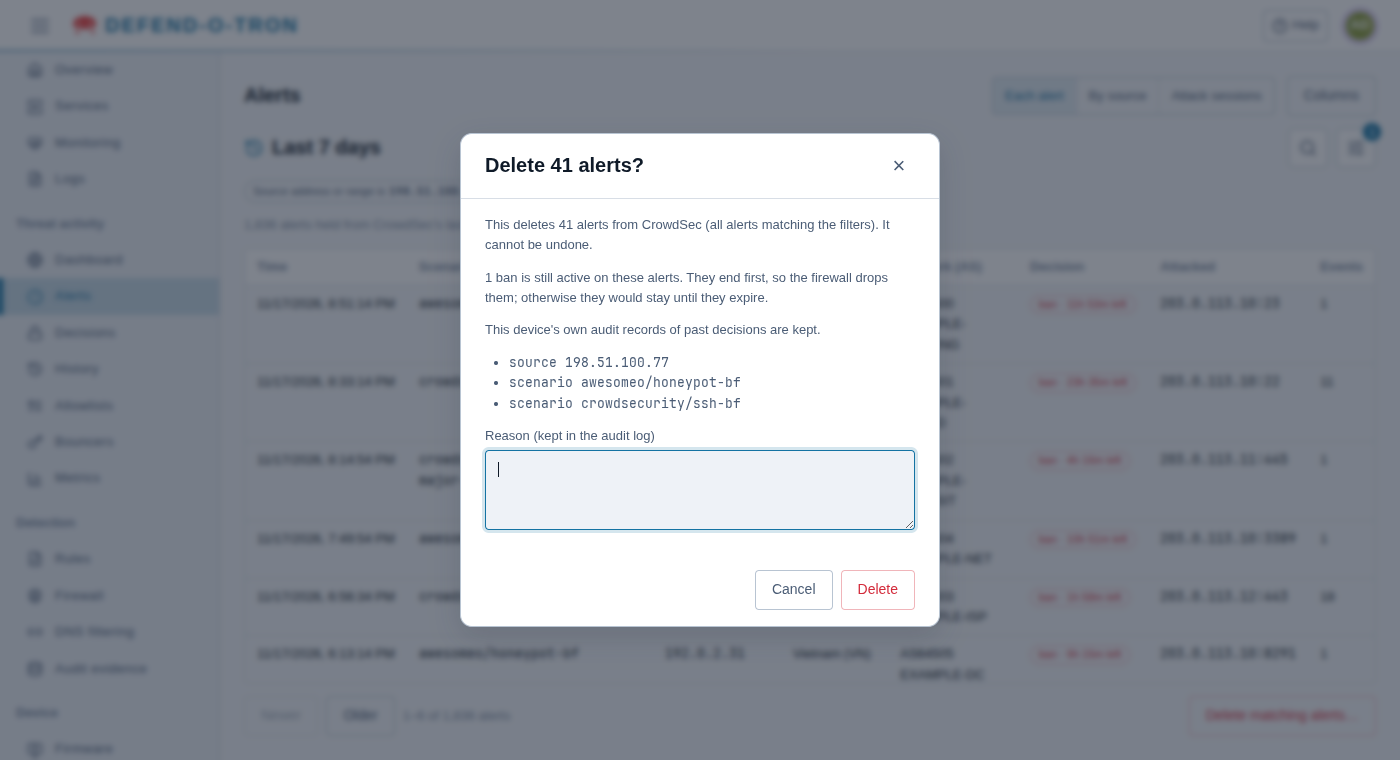
- every alert that matches the current period and filters, at most 500 at a time, with Delete matching alerts…
The device first works out what would be deleted, and asks you to confirm that number, with a reason. The reason is kept in the audit log.
- Bans that are still active on those alerts end first, so the firewall stops blocking those addresses.
- The device’s own audit records of past decisions are kept. Deleting alerts does not change the History page or the audit evidence.
- If the matching alerts change while you decide, nothing is deleted, and you are asked to try again.
Deleting cannot be undone.
To unblock an address, you don’t need to delete its alerts. Unban it on the Decisions page instead. See Handling false positives.
¶ Related
- Dashboard: the overview, and the period and filters.
- Honeypot: the
awesomeo/honeypot-bfscenario, and false positives. - Threat Activity: the other Threat activity pages.