¶ Overview
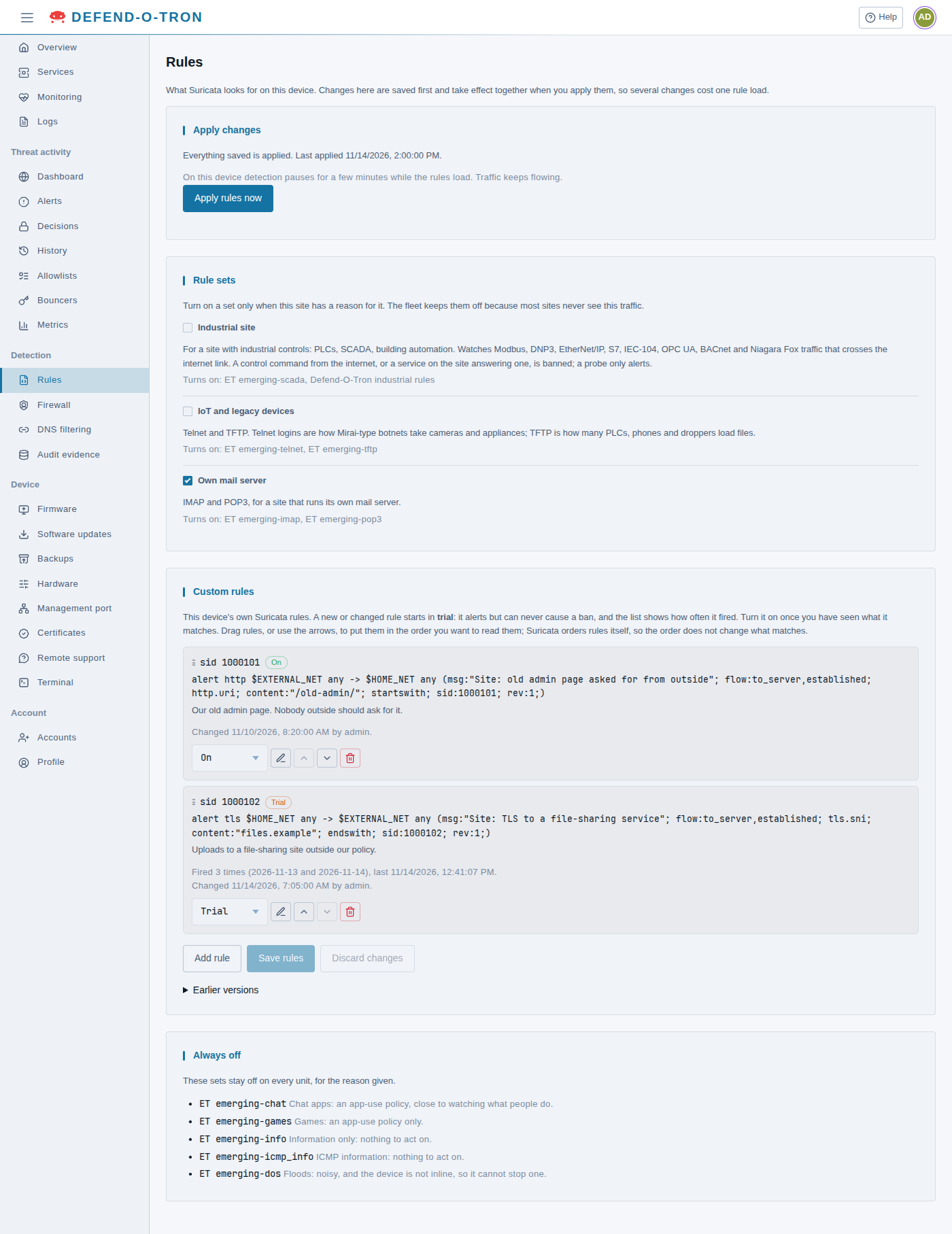
Detection → Rules chooses what the Defend-O-Tron looks for. The Defend-O-Tron watches the traffic on your internet link with Suricata, an intrusion detection system. Suricata compares the traffic with a large set of rules. When a rule matches, Suricata makes an alert, and CrowdSec can then block the address that caused it.
Most rules are on for every site. Some sets stay off, because most sites never see that traffic and the rules only cost time. On the Rules page you can:
- turn on a rule set that your site needs;
- add your own rules;
- apply your changes.
¶ Where to find it
Sign in to the web interface. In the menu, under Detection, click Rules.
Everyone who can see the page can read it. To change anything, you need the Detection rules permission. Administrators have it. An administrator can also give it to another role, for example a “rule editor” role, without making that person an administrator.
¶ Save first, then apply
A change on this page does not go live at once. It is saved, and the Apply changes card shows “Saved, not applied yet”. When you are ready, click Apply rules now. All your saved changes then load together, so several changes cost only one rule load.
On a V100, detection pauses for a few minutes while the rules load. Your traffic keeps flowing, and nothing is blocked by mistake, but new attacks are not detected until the load is done. Pick a quiet moment. The page tells you which kind of unit you have.
Your saved changes also load with the weekly rule update, if you do not apply them before.
¶ Rule sets
Turn on a set only when your site has a reason for it. A switch saves at once.
| Rule set | Turn it on when | What it adds |
|---|---|---|
| Industrial site | Your site has industrial controls: PLCs, SCADA, building automation | Rules for industrial protocols that cross your internet link (see below) |
| IoT and legacy devices | Your site has cameras, appliances or old equipment that use Telnet or TFTP | Telnet and TFTP rules. Botnets such as Mirai take devices through Telnet logins, and many PLCs, phones and attack tools load files with TFTP |
| Own mail server | You run your own mail server | IMAP and POP3 rules |
¶ Industrial site
Industrial control equipment should never be reachable from the internet. When it is, an attacker can read or change how a plant works. The Industrial site set watches for this traffic on your internet link:
- Modbus, DNP3 and EtherNet/IP sessions, writes, operate commands, restarts and stops;
- connections to S7, IEC-104, OPC UA, BACnet and Niagara Fox ports;
- a device on your site that connects out to an industrial port on the internet.
What happens next depends on what the device sees:
- Control from the internet, or a control system on your site that answers someone on the internet: the outside address is blocked for 24 hours. Each time the same address comes back, the block doubles: 48 hours, 96 hours, then 7 days.
- A device on your site connects out to an industrial port: the outside address is blocked, for the same times. Your device can then no longer reach it. Find out why the device connected out: it can be a compromised device, or a vendor’s remote access tool that nobody knew about.
- A probe of an industrial port from the internet: an alert only. A single probe packet can carry a false sender address, so a block on it could cut you off from a partner, such as your vendor or your DNS provider.
The Defend-O-Tron sits on your internet link. It sees industrial traffic that crosses the link, never traffic inside your plant. Keep your control network separate from your office network too.
If your equipment vendor connects from known addresses, add them to Trusted addresses on the Firewall page (see The Trusted List). Trusted addresses are never blocked.
¶ Custom rules
You can add your own Suricata rules. Each rule has a state:
| State | What it does |
|---|---|
| Trial | The rule is live and makes alerts, but it never causes a block. The list shows how often it matched in the last two days. |
| On | The rule works like every other rule: its alerts can cause blocks. |
| Off | The rule is kept in the list, but it is not loaded. |
¶ How a Suricata rule is built
A Suricata rule is one line with three parts: an action, a header that says which traffic it looks at, and options in brackets that say what to look for. For example:
alert tcp $EXTERNAL_NET any -> $HOME_NET 8443 (msg:"Connection attempt to port 8443 from the internet"; flow:to_server; flags:S; priority:1; sid:1000001; rev:1;)
| Part | In the example | What it means |
|---|---|---|
| Action | alert |
What Suricata does when the rule matches. On the Defend-O-Tron a custom rule is always alert (see What a custom rule cannot do) |
| Protocol | tcp |
The traffic to look at: tcp, udp, icmp or ip, or an application protocol such as http, tls or dns |
| Source | $EXTERNAL_NET any |
Where the traffic comes from: an address (or a variable, see below), then a port. any matches every port |
| Direction | -> |
From the source to the destination. <> matches both ways |
| Destination | $HOME_NET 8443 |
Where the traffic goes: an address, then a port |
| Options | (msg:...; sid:1000001; rev:1;) |
What to look for and how to report it, each option ending with ; |
The options you will use most:
msg:"...": the text the alert shows. Make it say what happened.flow:to_serverorflow:established,to_server: traffic towards the server, optionally only on a connection that is already set up.content:"...": text (or bytes) the traffic must contain. Addnocase;to ignore upper and lower case. A rule with nocontentchecks every packet, so it is slow: the Check button warns about it.- A buffer before
content, such ashttp.uri,http.host,tls.sniordns.query, makes the match look only in that part of the traffic. classtype:...orpriority:...: how serious the alert is (see From an alert to a block below).sid:...: the rule’s number, from 1000000 to 1899999 for your own rules.rev:...is its version: raise it when you change the rule.
The Defend-O-Tron does not decrypt traffic. A rule can match plain HTTP and DNS, and the unencrypted start of a TLS connection (such as the server name in tls.sni), but not what is inside HTTPS.
For every keyword and the full syntax, see Suricata’s own documentation for the version the device runs, Suricata 7.0: Rules Format and the list of rule keywords.
¶ $HOME_NET and $EXTERNAL_NET
Rules name addresses with variables, so the same rule works on every site. The Defend-O-Tron sets them like this:
| Variable | What it holds on the Defend-O-Tron |
|---|---|
$HOME_NET |
Your network: the private ranges (192.168.0.0/16, 172.16.0.0/12, 10.0.0.0/8 and IPv6 link-local fe80::/10), plus your own public addresses from the Home network tab of Detection → Firewall (the device keeps the detected one up to date) |
$EXTERNAL_NET |
Everything that is not in $HOME_NET, plus every public IPv6 address (2000::/3) |
Things to know:
- The Defend-O-Tron sits before your router, so traffic from your computers usually reaches it with your router’s public address, not their private ones. That is why your public addresses must be in Home network: without them, your own traffic counts as external.
- Because
$EXTERNAL_NETincludes every public IPv6 address, a rule from$EXTERNAL_NETalso matches traffic from your own public IPv6 addresses. - Variables such as
$HTTP_SERVERS,$SMTP_SERVERSand$DNS_SERVERSare all the same as$HOME_NETon the device.
A rule for attacks on your network goes from $EXTERNAL_NET to $HOME_NET. A rule for a device on your network calling out goes from $HOME_NET to $EXTERNAL_NET.
¶ From an alert to a block
- A rule in trial never causes a block, whatever it matches.
- When a rule is on, CrowdSec bans the alert’s source address after one alert, when the alert is about TCP traffic and has severity 1. A rule gets severity 1 from
priority:1, or from aclasstypewith priority 1, such asweb-application-attackortrojan-activity. Other alerts are recorded and shown, but do not block. - Because the source is banned, write a blocking rule so the attacker is the source: from
$EXTERNAL_NETto$HOME_NET. A rule that is on and matches traffic from your network would ban your own address. Keep such rules at a lower priority, so they only alert.
Another example, for a web server on plain HTTP:
alert http $EXTERNAL_NET any -> $HOME_NET any (msg:"Request for wp-login.php on our web server"; flow:established,to_server; http.uri; content:"/wp-login.php"; nocase; classtype:web-application-attack; sid:1000002; rev:1;)
Both examples were checked with the device’s Suricata.
¶ Add a rule
- Click Add rule.
- Write the rule on one line. Use a sid from 1000000 to 1899999. Each rule needs its own sid.
- Write a short note: why the rule is there.
- Click Check. The device tests the rule with Suricata and shows any errors. It also shows Suricata’s advice, for example when a rule is slow because it has no content to search for. Nothing is saved yet.
- Click Add to the list, then Save rules. The device tests the whole list again before it saves.
- Apply the rules (see above).
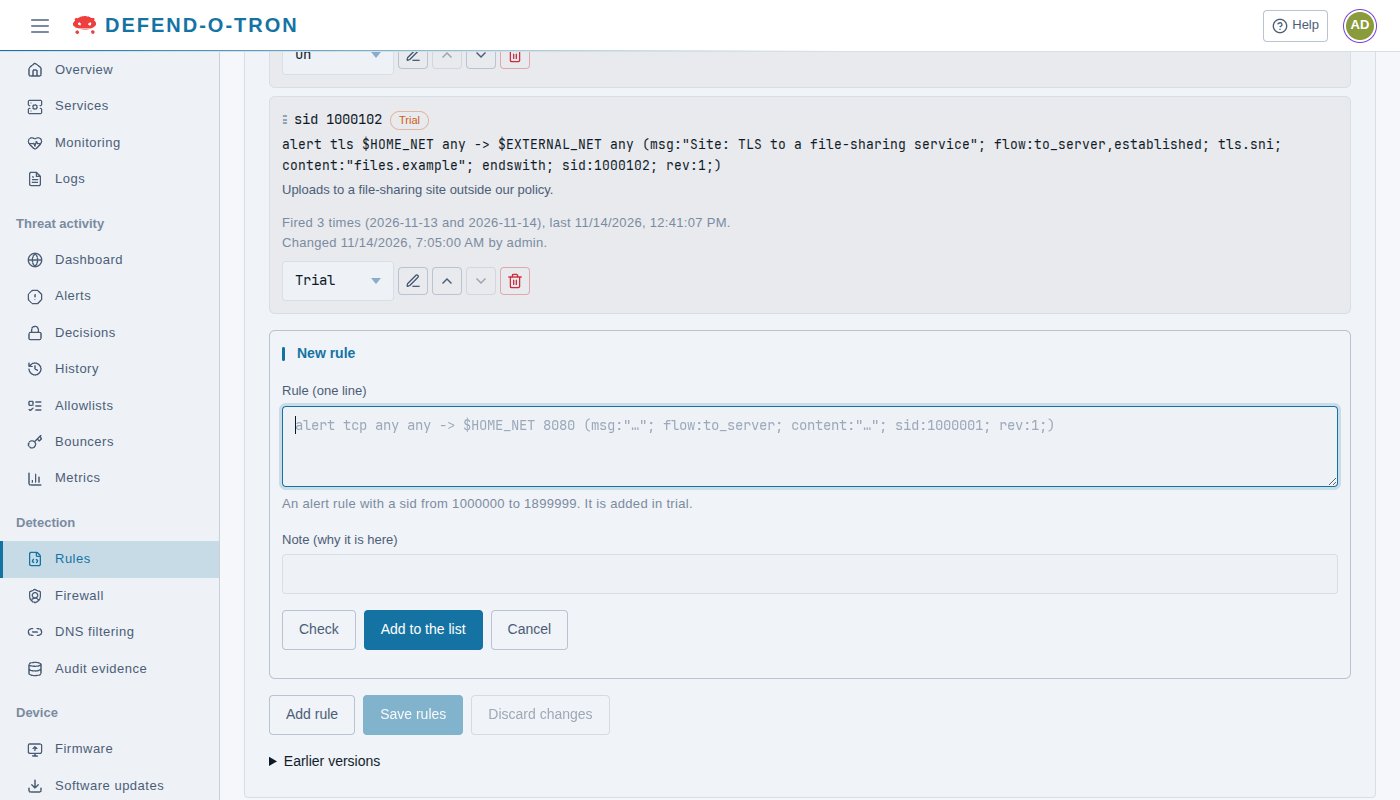
A new rule always starts in trial. When you change a rule, it goes back to trial.
¶ Turn a rule on
Leave a new rule in trial for a while. Look at how often it matched. If it matches only what you expect, set its state to On, confirm, and click Save rules. Then apply the rules. From now on, its alerts can cause blocks.
A rule that matches too much can block many addresses when it is on. Keep it in trial until you know what it matches.
¶ What a custom rule cannot do
To keep the device safe, the page refuses some rules:
- Only alert rules. A pass rule would switch detection off. A drop or reject rule would make the device answer traffic, and it must stay invisible.
- No scripts, no files. Keywords that run scripts, read or write files, or fill the disk are refused.
- No changes to other rules. A custom rule can check the flags that other rules set, but it can set or clear only its own flags, which start with
custom.. - Limits: one line per rule, up to 500 rules.
When the page refuses a rule, it tells you why.
¶ Order, versions and changes in a terminal
- Order: drag a rule, or use the arrows, to put the list in the order you like to read it. The order does not change what Suricata matches.
- Earlier versions: each save keeps the list it replaced. Open Earlier versions to view one, or restore it into the list. A restored rule that changed since comes back in trial.
- Two people at once: if someone else saved the list after you opened the page, your save is refused. Reload the page and make your change again.
- Changes in a terminal: if someone changed the rules file in a terminal, the page tells you. The next save on the page replaces that file, and keeps the changed file under Earlier versions.
Every change on this page is recorded in the audit evidence: who made it, from where, and what changed.
¶ Always off
At the bottom, the page lists the sets that stay off on every unit, each with its reason. For example, the chat and games sets are about app-use policy, not attacks, and the flood set is noisy and the device cannot stop a flood anyway.
¶ Testing with a capture file
Advanced users can test rules against a packet capture (pcap) in the device’s terminal with Suricata itself. The Rules page does not do this.