¶ When You Need Help
The Defend-O-Tron has built-in remote support. You open a session from the web interface, an Awesome-O support engineer reaches the device through a secure tunnel, and the session lasts until you end it, with one click. The tunnel is never open unless you opened it.
Awesome-O support engineers will never ask for your password. The tunnel and the engineer’s access are set up for each session, and removed when it ends.
¶ Before You Start
- You need the Administrator role. Only administrators can open the Remote support page.
- Your firewall must let the Defend-O-Tron’s management address connect out to the support server on UDP 60 to 62 (the tunnel) and TCP 1515 (the chat). See the outbound ports on the Requirements page.
¶ Starting a Session
- In the web interface, go to Device → Remote support.
- Under Ask for help, describe what you need help with. Optionally, say how support can reach you.
- Click Start support session.
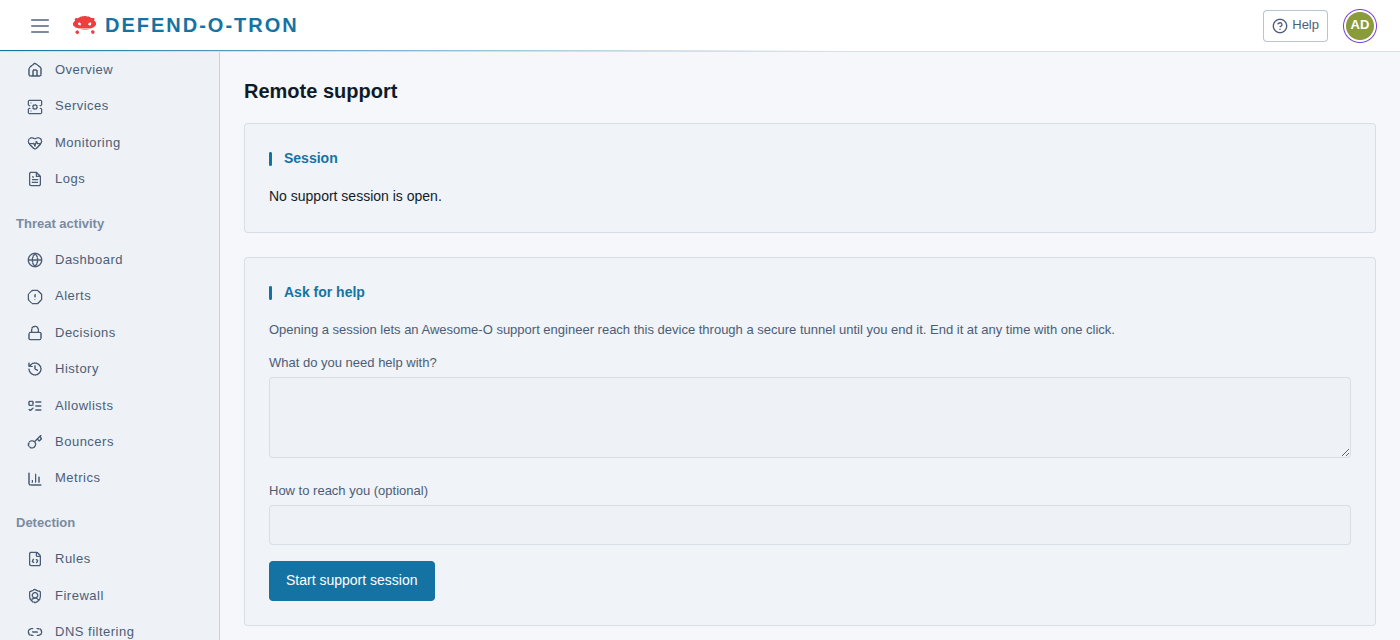
The Defend-O-Tron opens a support ticket (or continues the open ticket for this device), connects the tunnel to the support server, and creates a temporary account that the support engineer signs in with through the tunnel.
¶ During the Session
The Session card shows the ticket number, the engineer’s temporary account, the tunnel address, when the session opened, and your reason.
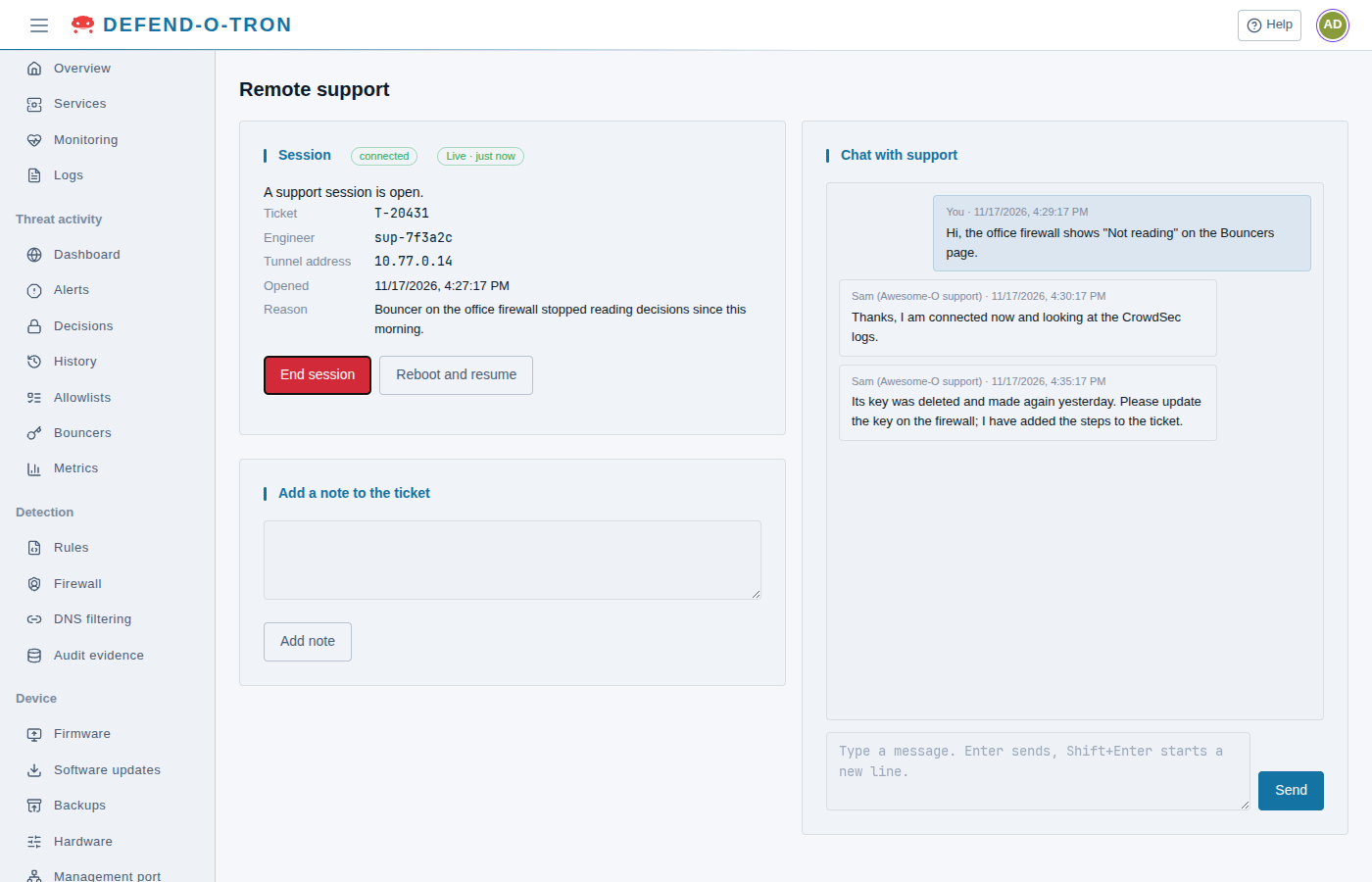
- Chat with support: talk to the engineer while they work. Press Enter to send.
- Add a note to the ticket: add details for the ticket, for example what you changed or what you saw.
- Reboot and resume: restart the device without ending support. Internet traffic through the device stops while it restarts, usually for a few minutes. The session reconnects on its own when the device is back.
While the session is open, the support engineer has full administrator access to the device, including root, so they can find and fix problems. End the session as soon as the work is done.
¶ Ending the Session
Click End session. It works at once, with no confirmation, at any time. The Defend-O-Tron then:
- Stops the support connection and closes the tunnel.
- Deletes the engineer’s temporary account.
- Tells the support server that the session has ended.
The support engineer can also end the session from their side, when they close the ticket. As a safety net, the temporary account is also set to expire after 7 days, even if something stopped it from being deleted.
Starting and ending a session are recorded in the audit log, on the Admin actions tab of Detection → Audit evidence. See Compliance Reporting.
¶ What Awesome-O Receives
While a session is open, the Defend-O-Tron sends these to Awesome-O’s support server:
- Your request: the reason you gave, how to reach you, the chat messages and the ticket notes. They are kept with the ticket.
- A hardware and software inventory, once, when the session connects: the firmware and kernel versions, the kernel’s command line and modules, the processor and its features, the storage (partitions and file systems), and the network ports (name, state, speed, MAC address and driver). The NVMe drive’s model, serial number and health are included only if Awesome-O’s console asks for them, which it does not by default. It contains no network traffic and no logs.
- Live device figures, only while the support engineer turns them on during the session: system figures, and the network port and firewall counters. They stop when the session ends.
- A status check every 30 seconds, so both sides know the session is still open.
Awesome-O’s support console also records the support engineer’s session on the device.
The inventory is also sent, without a session, each time the device enrolls with Awesome-O’s console or renews its enrollment (about once a year). The other items are sent only while a session is open. While a session is open, the engineer can also see what is on the device itself (see the warning above).
¶ From the Terminal
You can also open a session from Device → Terminal:
sudo tech-support --reason "Bouncer on the office firewall stopped reading decisions"
It opens a session, or joins the one already open, and waits. Press Enter to end the session. It is the same session as on the Remote support page, so you can end it from either place. See tech-support for every option.
¶ Related Pages
- Requirements: the outbound ports the support tunnel and chat need.
- Admin Interface: roles, and where to find each page.
- Compliance Reporting: the audit record of administrators’ actions, including support sessions.
- tech-support: the terminal command.